A common issue encountered in Node.js or npm-based projects—especially on Windows—is the following error when running a command like:
npx hogehoge
in PowerShell:
npx : The term 'npx' is not recognized as the name of a cmdlet, function, script file, or operable program.
The command stops immediately and nothing runs. So how do you fix this?
Why This Error Happens
The root cause is straightforward: Node.js is not installed, or the PATH environment variable does not include node/npm/npx.
On Windows in particular, it is quite common for the PATH setting to fail to update properly after installation.
1. Install Node.js
First, check whether Node.js is actually installed. In PowerShell, run:
node -v
npm -v
If no version number appears, Node.js is not installed. Install it using one of the following methods.
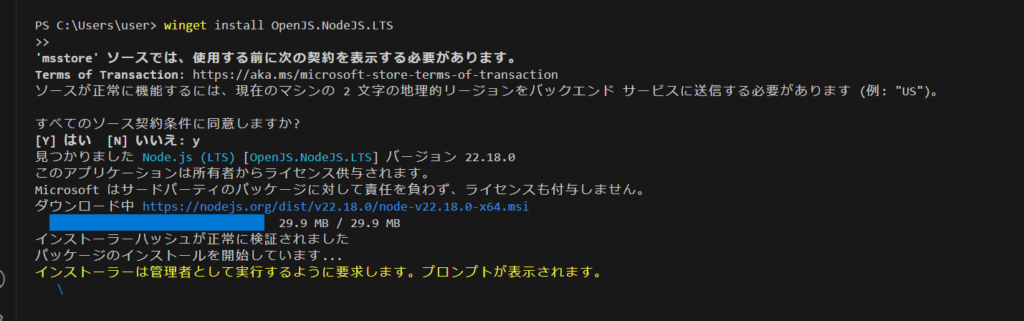
Installing via winget
winget install OpenJS.NodeJS.LTS
Installing via the official MSI installer
Download the LTS (recommended) version from:
During installation, make sure to check “Add to PATH” before proceeding.
You’ll see a dialog asking whether you want to allow changes—click OK to continue.
Summary
- The error essentially means npx isn’t installed or the PATH is not set correctly.
- In most cases, installing Node.js and restarting PowerShell will resolve it.
- If the issue persists, review your PATH settings manually.
- As a fallback, you can also use
npm exec.
When working with front-end tooling or CLI utilities on Windows, verifying that Node.js is correctly set up is the first and most important step.
