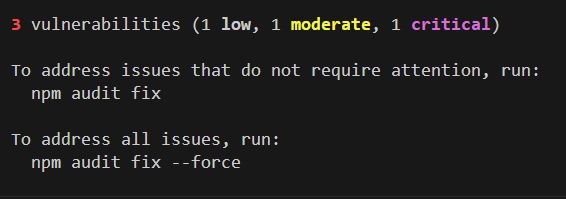
Seeing something like this right after npm install is genuinely scary:
3 vulnerabilities (1 low, 1 moderate, 1 critical)
Run `npm audit fix` to fix them, or `npm audit` for details
The word "critical" does serious emotional damage. This article explains how to turn that fear into a quick, practical decision: whether you must stop immediately, or whether it's safe to keep working and fix it later.
I'll write this from the perspective of a ZIDOOKA! workflow (local CLI tools, writing automation), focusing on securing what matters without breaking your flow.
Conclusion: Severity is Not the Same as Risk
npm audit severity levels (low / moderate / high / critical) are primarily about the vulnerability's potential impact in general. They don't automatically mean your specific setup is exploitable.
For example, the same vulnerability means very different things in these contexts:
- Production Server: Accepts untrusted input from the internet (Risk: High)
- Browser: Runs on the user's browser (Risk: Medium to High)
- Build/Test: Runs only on your local machine or CI (Risk: Low)
So the first move is not "panic," but "scope and context."
- Which dependency is it?
- How did it get in?
- Where does it run? (Production or Dev?)
Can I ignore npm audit warnings?
The short answer is: "YES, conditionally."
If your situation fits these conditions, you often don't need to drop everything to fix it immediately:
- It's a dev dependency (devDependencies): Tools that are never deployed to production.
- Attack conditions are not met: E.g., a vulnerability in a server that accepts user input, but you are using the tool only to convert Markdown locally.
- OS Command Injection, but no external input: If you only pass hardcoded values to the function, it cannot be exploited.
"Ignore" doesn't mean "forget forever." It means "you don't need to stay up all night fixing it right now."
Why npm audit fix –force is Dangerous
The suggestion to "Run npm audit fix –force" is the scary part—and often a trap.
–force can apply fixes that require breaking changes, including major version upgrades that ignore semantic versioning compatibility. This means you might fix the vulnerability but break your entire project.
Basic Strategy:
- Run npm audit fix first (updates within a safe, non-breaking range).
- If issues remain, identify the dependency chain and impact manually.
- Use –force only as a last resort (and only if you can test properly).
A 5-Minute Decision Checklist
Follow this order to turn fear into a decision.
1) Does it ship to production? (Is it dev-only?)
If it's for build/test only and doesn't go to production, the urgency drops significantly.
To check only production dependencies:
npm audit --omit=devNote: –production was used in the past, but –omit=dev is the recommended flag in modern npm.
2) Which package is actually vulnerable?
Run:
npm auditNote the package name, then check the path:
npm ls <package-name>Knowing "which parent dependency pulled it in" is often the fastest path to a real fix.
3) Upgrade the parent package
A common trap is "The vulnerable package is a grandchild dependency I don't touch directly." In this case, rather than trying to pin the grandchild, upgrading the parent package to its latest version is usually the cleanest solution.
CI / GitHub Actions Failures
You might ignore it locally, but then GitHub Actions fails because npm audit runs there. npm audit returns exit code 1 when vulnerabilities are found, which stops the CI pipeline.
If you only want to fail on critical issues, use this:
# Fail only on critical vulnerabilities
npm audit --audit-level=critical
What about package-lock.json?
Running npm audit fix modifies package-lock.json. You might worry, "Is it safe to let it change automatically?" Generally, fix (without force) updates dependencies within the allowed range defined in package.json, so it is safe.
However, never run it without a clean git state. Always commit before running audit fix. If it breaks something, you can simply git checkout package-lock.json to undo.
Common Mistakes
- Running –force immediately: Can break your project and cost you hours of recovery time.
- Ignoring the lockfile: Changing the lockfile drastically in a team setting can cause errors for other members.
- Forcing grandchild versions: Using overrides or resolutions blindly can cause dependency hell later.
ZIDOOKA! Style Strategy (For Writers & Solo Devs)
If your main usage is "writing articles," "CLI for WP," or "local scripts," prioritize like this:
- Production Services: Priority High (Fix immediately).
- Local-only CLI Tools: Priority Medium (Check the path and conditions; fix when you have time).
- Build/Test Tools: Priority Low (Monitor regularly).
Fear is normal. But the decision is simple once you check:
- Where it runs
- What conditions enable exploitation
- Which parent dependency is the cause
This is enough to decide if it's a "stop everything" emergency or a "fix it next weekend" task.
