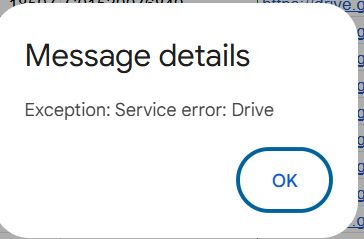
When using DriveApp in Google Apps Script (GAS), you might suddenly encounter "Exception: Service error: Drive". It interferes with your script even though you haven't changed the code, often causing confusion.
This article explains the "Top Causes Ranking" and the "Correct Workarounds" to keep your script running.
What is this Error?
Exception: Service error: DriveThis error means that DriveApp or the Advanced Drive API received an error response from Google Drive itself. It is rarely a syntax error in your code, but rather a problem with the Drive service state or communication.
Top Causes Ranking
1. Temporary Google Side Failure
This is surprisingly common. The Drive API might be momentarily unstable. Often, the exact same code will work if you run it again.
- 【Fix】First, re-run the script to see if it reproduces.
2. File/Folder Does Not Exist
Occurs when DriveApp.getFileById(fileId) is called with an invalid ID.
- Incorrect file ID (copy-paste error).
- File was already deleted.
- File looks like it exists but is in the Trash.
This often happens during a loop process if a file is deleted by another user while the script is running.
3. Insufficient Permissions
The user executing the script does not have permission to access the file or folder.
- "Viewer" only access on shared folders (some operations require Edit).
- Owner is a different account.
- Restricted by Shared Drive settings.
DriveApp is fragile when dealing with "visible but untouchable" files.
4. Quota / Rate Limits (Too Many Requests)
Occurs when performing massive Drive operations in a short time.
- DriveApp.searchFiles
- getFiles(), getParents(), getBlob()
Looping these too quickly can trigger a sudden service error.
5. Missing Advanced Drive API Parameters
If you use Drive.Files.list with Shared Drives, certain parameters are mandatory.
- supportsAllDrives: true
- includeItemsFromAllDrives: true
Without these, accessing a Shared Drive usually results in an immediate crash.
Immediate Fixes and Best Practices
Here is how to write robust code that doesn't stop the entire script when one error occurs.
1. Use try-catch to Identify the Cause
Always wrap Drive operations in try-catch to identify which file is causing the crash.
try {
  const file = DriveApp.getFileById(fileId);
  // Do something
} catch (e) {
  Logger.log('NG fileId: ' + fileId);
  Logger.log(e); // Log the specific error
}- 【Point】Logging the problematic file ID helps you verify if it was deleted or has permission issues.
2. Design for "Skip on Error" in Loops
When processing lists of files, ensure the loop continues even if one file fails.
files.forEach(f => {
  try {
    // Drive Operation (Rename, Move, etc.)
    f.setName('processed_' + f.getName());
  } catch (e) {
    Logger.log('SKIP: ' + f.getId());
  }
});
Without this, one deleted file in a batch of 1000 will stop the entire process.
3. Check Advanced Drive API Parameters
If working with Shared Drives, always include the support flags.
// Essential for Advanced Drive API
const files = Drive.Files.list({
  q: "title contains 'report'",
  supportsAllDrives: true,        // REQUIRED for Shared Drives
  includeItemsFromAllDrives: true
});
4. Add Sleep (Rate Limit Measure)
When processing many files at once, intentionally slow down the script.
files.forEach(f => {
  try {
    f.makeCopy();
    Utilities.sleep(200); // Wait 200ms
  } catch (e) {
    // ...
  }
});- 【Fix】APIs are sensitive to bursts. Adding a small Utilities.sleep(200) dramatically improves stability.
Correct Error Handling Architecture
Do not use UI.alert deep inside your processing logic. Separate "Notification" from "Processing".
Bad Example (Stops execution, Error dialog shown):
// ❌ Bad
function processFile(id) {
  // If this fails, exception propagates up and crashes
  const file = DriveApp.getFileById(id);
}
Good Example (Runs to completion, Notifies result):
function exportFileListToSheetManual() {
  try {
    // Call core logic
    exportFileListToSheetCore();

    // Success message
    SpreadsheetApp.getUi().alert('Completed successfully');
  } catch (e) {
    // Alert the error message cleanly
    SpreadsheetApp.getUi().alert('Error occurred:\n' + e.message);
  }
}

function exportFileListToSheetCore() {
  // No UI calls here. Throw errors to parent.
  // Individual file errors can be try-catched internally to skip.
}
Summary
- 【Conclusion】Service error: Drive isn't always a code bug. Assume accidents (deleted files, network glitches) will happen.
- 【Caution】Avoid alert in batch processing. try-catch and "Skip Design" are mandatory.
- 【Point】Don't forget supportsAllDrives: true for Shared Drives.
Drive integration is prone to errors. Aim for a script that "doesn't stop even if an error occurs," rather than one that "never errors."
