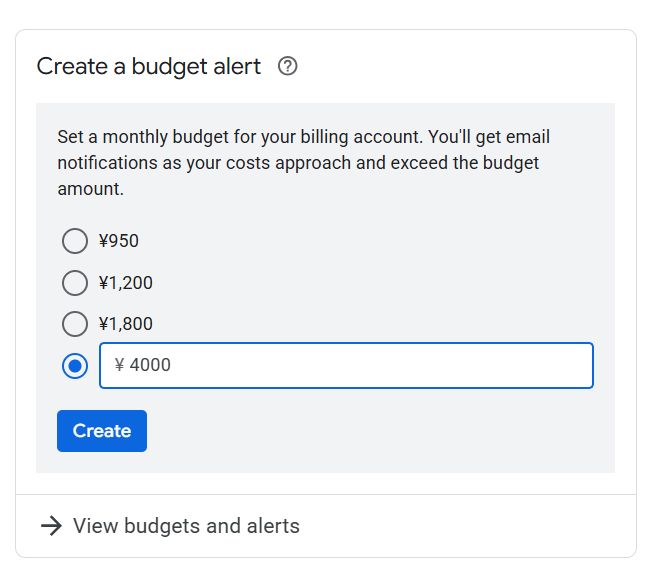
After using the Gemini API for a while, many people start to worry: "How much will this cost before it stops?" "Can't I set a billing cap on a per-API key basis?"
Update (March 25, 2026): Google AI Studio now shows a Spend caps interface, including a project-level monthly spend-cap UI. I summarized the current status in this newer article.
If you search for "gemini api billing cap" or "gemini api limits", you will find explanations about rate limits and Budgets, but hardly any articles give a core answer.
In this article, after actually using the Gemini API and checking the Google Cloud Billing screen and Budgets settings, I will clarify:
The Japanese version is here. If you are already seeing Resource has been exhausted, that article is the more direct match.
- Can you set a billing cap on Gemini API keys?
- Why is it not possible?
- How can you prevent "accidents"?
I will organize this starting from the conclusion.
Conclusion: You Cannot Set a "Billing Cap" on Gemini API Keys
First, the conclusion.
With Gemini API, you cannot set a billing limit (cap) on a per-API key basis. Also, there is no mechanism to automatically stop billing when a certain amount is reached.
What you can do is set up "alerts (notifications)" for the billing amount.
There are few articles that clearly state this point, but if you actually follow the settings screen, you will understand this specification.
Common Misconception 1: Rate Limits != Billing Caps
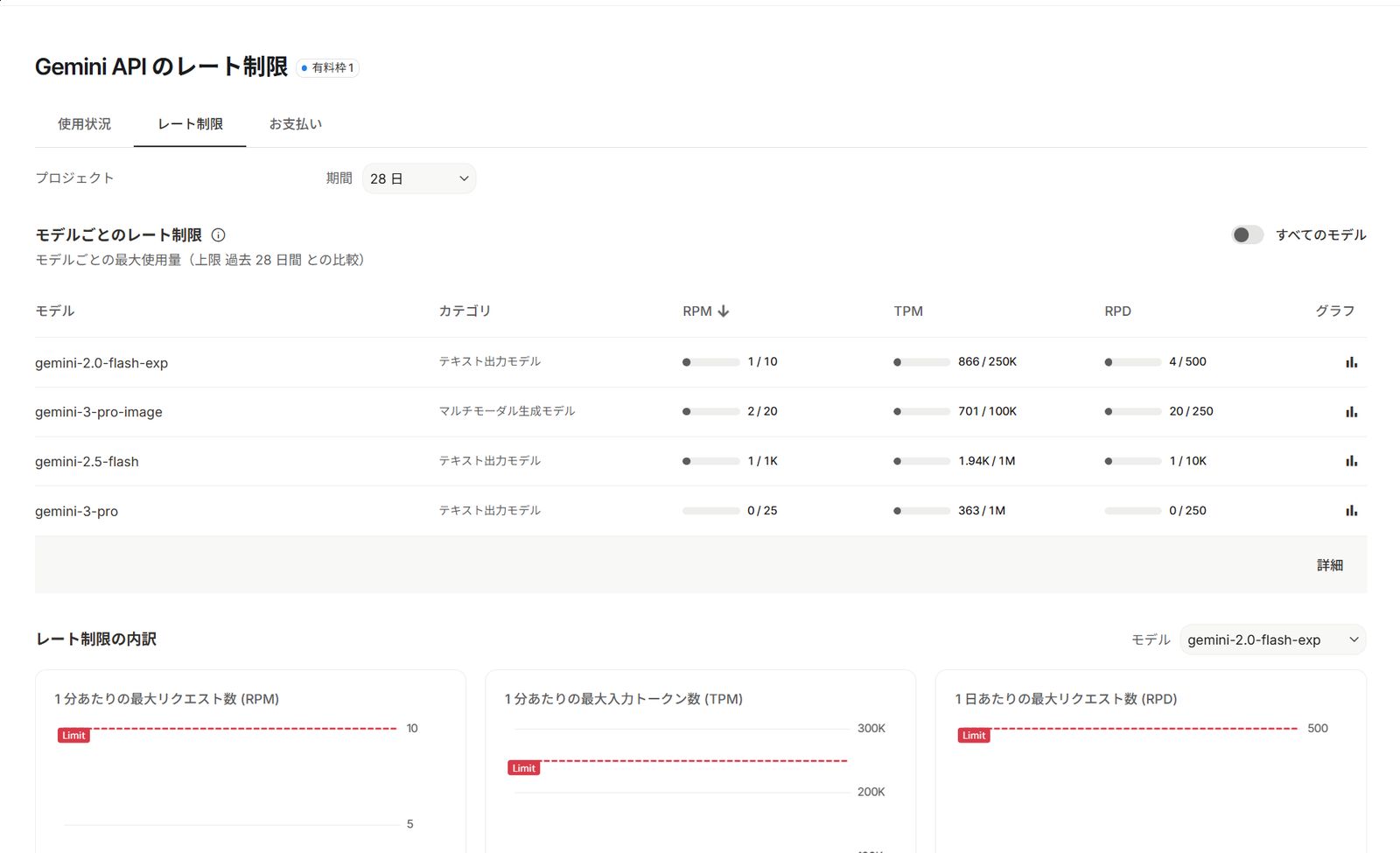 The "Google AI Studio" screen for Gemini API. Neither alerts nor caps can be set here.
The Gemini API management screen has rate limit settings such as:
- RPM (Requests Per Minute)
- TPM (Tokens Per Minute)
- RPD (Requests Per Day)
At first glance, you might think, "Can I set a limit with this?" but this is not a billing limit.
Rate limits are strictly for preventing:
- Infinite loops
- Massive requests due to bugs
Please note that this is not a mechanism to "stop at X dollars".
Common Misconception 2: There are No Cap Options in IAM or API Key Settings
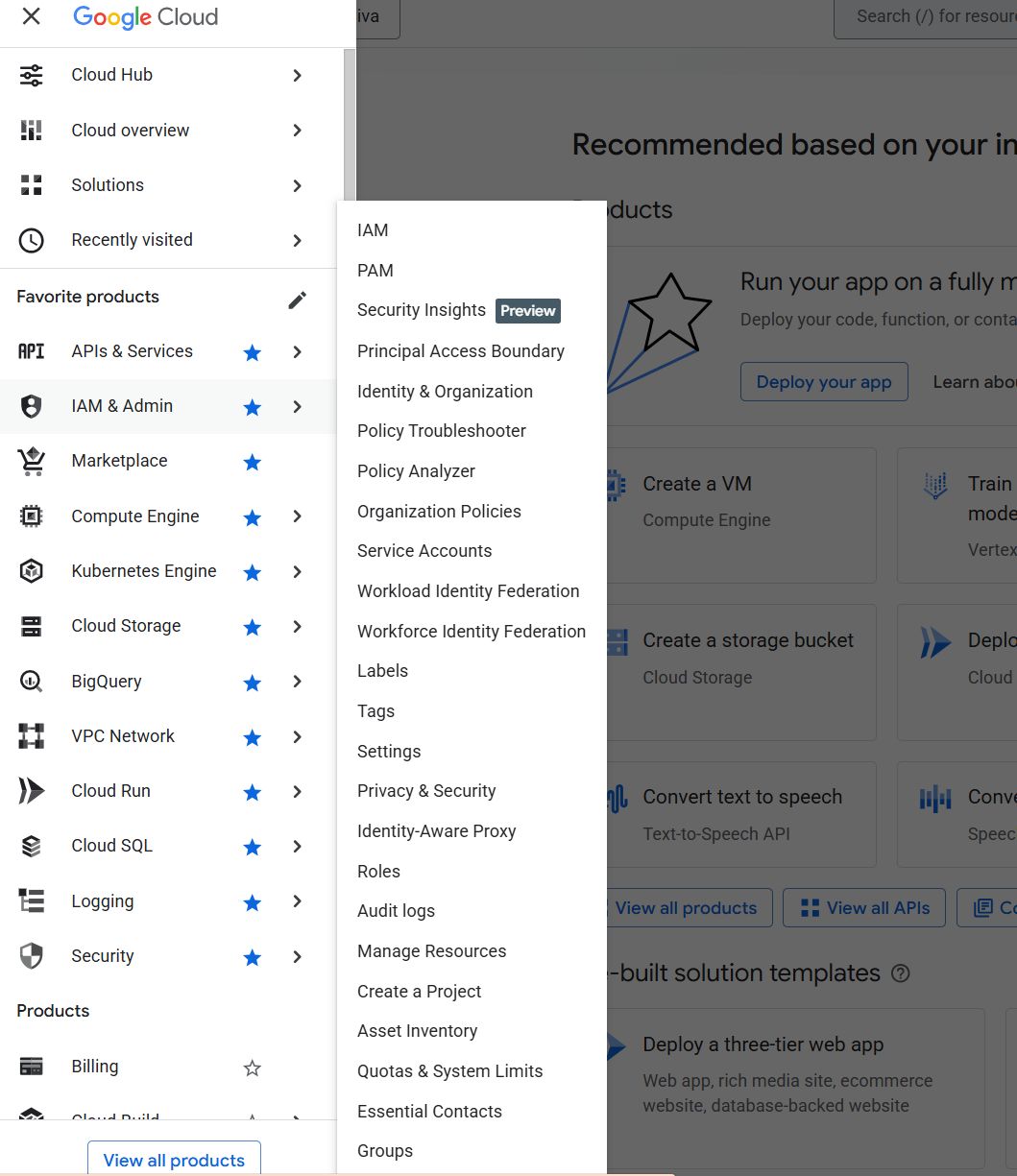 The GCP sidebar. You need to click Billing here.
Even if you search IAM or API key settings thinking "Can I limit it per API key?", there are no items related to billing limits.
This is because Gemini API billing is managed by:
- Google Cloud Billing Account / Project unit
Not by:
- API Key unit
What You Can Do: Alert Settings via Budgets
 Selecting Billing.
The only place where you can manage Gemini API billing is Google Cloud Billing -> Budgets & alerts.
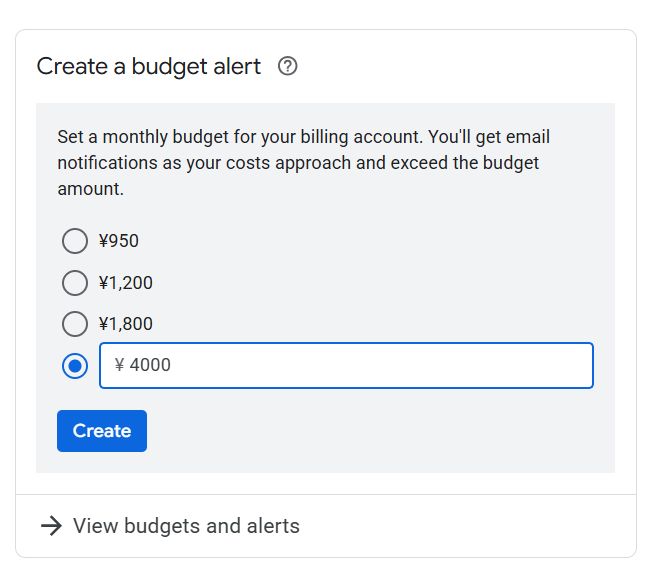 The screen where a Budget alert is set. It is set at 4000 yen.
Here, you can:
- Set a "Budget" of X dollars per month
- Send email notifications at 50%, 80%, 90%, etc.
However, the important thing is that Budgets are only for "notifications" and are not a function to automatically stop billing.
Why is Auto-Stop (Cap) Not Provided?
This is due to the design philosophy of Google Cloud as a whole, not just the Gemini API.
Google Cloud assumes usage in:
- Business systems
- Production services
- Environments where SLA is important
Therefore, the situation where "the API stops unknowingly and the service goes down" is considered a more serious accident than "billing continues".
As a result, the design is:
- Do not stop automatically
- Leave judgment and stopping to the user
Realistic Measures: ZIDOOKA! Recommended Operation
So, how can you use it safely?
1. Set a Low Budget in Budgets
- For verification: $3 – $5 / month
- For production: $10 – $30 / month
2. Always Enable 90% Alert
- To prevent "too late when noticed"
3. Disable API Key When Alert Comes
- Disable the corresponding key from API Keys
- Or disable the Gemini API itself
4. Separate Projects
- Verification Project
- Production Project
ects
- Verification Project
- Production Project
With just this, the probability of a billing accident becomes almost zero.
- You cannot set a billing cap on Gemini API keys
- There is no mechanism for automatic stopping
- What you can do is alerts via Budgets
- That is why "operation with the premise of stopping" is important
- What you can do is alerts via Budgets
- That is why "operation with the premise of stopping" is important
It is not that it is a "scary API with no limits", but if you understand it as "an API that assumes enterprise use and leaves judgment to you", you will see how to deal with it.
References:
- Google Cloud Billing Documentation https://cloud.google.com/billing/docs
- Gemini API Pricing https://ai.google.dev/pricing
