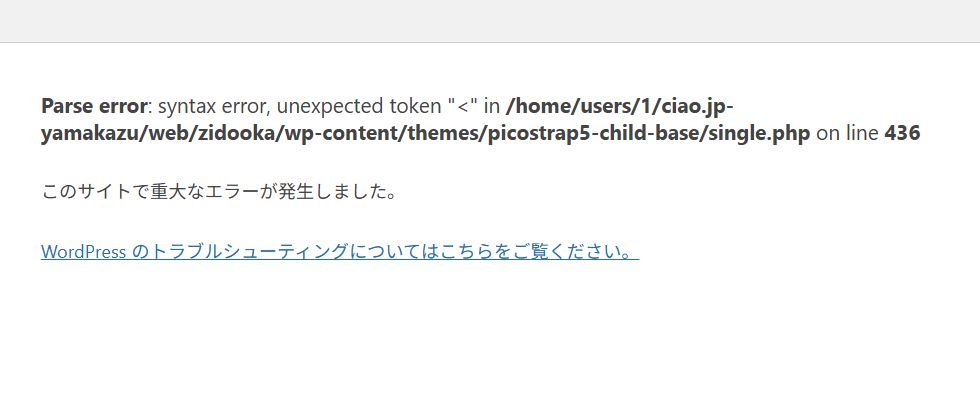
Have you ever been customizing WordPress, hit save, and suddenly faced a white screen with this error?
Parse error: syntax error, unexpected token "<"
When your site and admin dashboard both disappear, it’s natural to panic and think, "I broke it!"
But please rest assured. This error is actually one of the "least scary" errors because the cause is clear and the fix is definite.
In this article, I will explain gently for non-programmers "what is happening" and "how to fix it."
What is Happening?
In short, it’s a sign that says, "There is a typo in your PHP file."
The message unexpected token "<" simply means, "I didn't expect a < symbol to appear here."
WordPress runs on a language called "PHP," which has strict rules for how it must be written. If you make even a small mistake in those rules, PHP says, "I don't know how to process this!" and stops working.
Imagine this: It's like writing a sentence in English but accidentally putting a random symbol in the middle of a word. The computer tries to read it, gets confused by the symbol, and stops.
Where to Look First
The good thing about this error is that it kindly tells you exactly where the mistake is.
If you look closely at the error screen, you will always see information like this:
/themes/my-theme/functions.php on line 436You only need to look at these two things:
- File Name (e.g., functions.php)
- Line Number (e.g., Line 436)
The cause is almost 100% somewhere around this line.
3 Common Causes
When beginners encounter this error, it is usually due to one of these three reasons.
1. Forgetting to Close or Typos in PHP
This is the most common cause.
<?php
if ($flag) {
  echo 'OK';
// Forgot to close with '}' here!
Forgetting a closing bracket } or a semicolon ; at the end of a line is enough to cause this error.
2. Writing HTML Directly Inside PHP
If you write HTML tags (like <div>) directly inside PHP code without closing the PHP tag first, it will cause an error.
Bad Example:
<?php
echo 'Hello';
<div>This causes an error</div>
Correct Way:
<?php
echo 'Hello';
?>
<!-- Close PHP tag first -->
<div>This is OK</div>
3. Broken Code from Copy-Pasting
When copying code from the web or ChatGPT, it's common to:
- Forget to copy the opening <?php tag.
- Accidentally include extra symbols or text.
Suspecting "the place I just pasted" is the fastest shortcut.
How to Fix It When You Can't Access the Admin Dashboard
You might think, "I can't access the dashboard, so I can't fix it!" but don't worry. You can fix it using your hosting server's tools.
Recovery Steps
- Log in to your hosting server's panel and open the "File Manager" (or use FTP software).
- Find and open the file mentioned in the error message (e.g., functions.php).
- Look at the code around the "Line Number" shown in the error.
- Delete the code you just added.
Rather than trying to "fix" the code, "reverting to the state before editing" is the surest and fastest way. Once you delete the problematic part and save, your site will return to normal immediately.
What If You Still Don't Know?
If you look at the code and have no idea what's wrong, the following methods are safe:
- Restore from Backup: If you have the file from before you edited it, upload and overwrite it.
- Revert Little by Little: Delete everything you just edited, then try adding it back one line at a time carefully.
Summary
- This error is just a simple "grammar mistake (typo)."
- The "File Name" and "Line Number" on the error screen are telling you the answer.
- If you undo the last change, it will definitely be fixed. Don't panic.
Seeing this error is proof that you challenged yourself to customize your site. It's a path everyone walks, so please stay calm and handle it step by step.