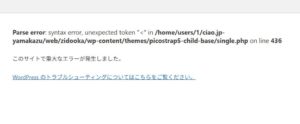
Case 1: The screen goes blank immediately after clicking “Update”
This is the classic failure pattern. The plugin encountered a fatal PHP error during the update and WordPress halted execution.
▶ What to do (fastest route)
- Log in via FTP or File Manager
- Open
/wp-content/plugins/ - Rename the updated plugin folder to
plugin-name_disabled - Reload the site
→ In most situations, WordPress comes back instantly.
▶ After recovery
- Reinstall the plugin cleanly
- Check PHP compatibility in Tools → Site Health → Info
Case 2: The plugin update succeeds, but the dashboard becomes 500 minutes later
This often happens when the plugin starts running background tasks after updating.
▶ What to do
- Disable likely conflicting plugins one by one
- Refresh the dashboard after each deactivation
- If the admin panel returns, the conflict source is identified
▶ Plugins that frequently cause this pattern
- Cache plugins
- Optimization plugins
- Security modules
Case 3: Only product pages return 500 on WooCommerce sites
▶ What to do
- Disable WooCommerce add-ons individually
- Check theme template overrides
- Replace outdated WooCommerce templates
Case 4: 500 errors appear randomly across the site
Highly indicative of memory exhaustion.
▶ What to do
- Increase memory limit in
wp-config.php - Adjust server PHP memory settings
- Clear caches and retest
Ref.
- Using FTP Credentials – WordPress.org Documentation
https://wordpress.org/documentation/article/ftp-credentials/ - Debugging in WordPress – WordPress.org Documentation
https://wordpress.org/documentation/article/debugging-in-wordpress/ - PHP Error Handling and Logging – PHP Manual
https://www.php.net/manual/en/errorfunc.configuration.php - .htaccess Tutorial – Apache Official Documentation
https://httpd.apache.org/docs/2.4/howto/htaccess.html