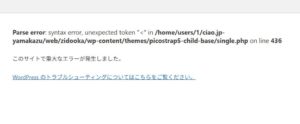
There are times when your WordPress site appears perfectly normal on the front end, yet wp-admin returns a 500 Internal Server Error and shows a completely blank screen.
Because the public site loads fine, this issue can feel mysterious and difficult to diagnose, even though it stops all administrative work immediately.
This article explains the most common causes of “wp-admin only 500 errors”, along with practical steps that helped me resolve this issue based on my own experience.
■ Common Causes When Only wp-admin Returns a 500 Error
When the front end is functioning normally but the dashboard is not, the cause is usually one of the following:
functions.php errors, plugin issues, Basic Auth misconfigurations, PHP version mismatches, or permission troubles.
1. A Small Mistake in functions.php
This is the most frequent cause.
Typical errors include:
- A missing semicolon
- An extra character or symbol
- A space inserted after
?> - Unclosed comments
- A broken include of another file
Because WordPress loads many theme functions inside the admin area,
a small syntax error in functions.php often affects wp-admin first, even when the front end still displays normally.
How to check:
- Open
/wp-content/themes/your-theme/functions.phpvia FTP or your server’s file manager - Review the lines you modified most recently
- If unsure, temporarily rename the file (e.g.,
functions.php.bak)
→ If wp-admin loads afterward, the issue is confirmed.
2. A Plugin Causing an Admin-Only Failure
The admin dashboard loads plugin configuration screens, so
a single broken plugin can cause wp-admin to return a 500 error even if the public site appears fine.
Plugins that often cause this:
- Security plugins
- Cache plugins
- Backup plugins
- Redirect/SEO plugins
How to check:
- Rename each folder inside
/wp-content/plugins/to disable them (adding_offis enough) - Try accessing wp-admin
- Restore plugin names one by one to identify the culprit
3. A Misconfigured .htaccess Related to Basic Authentication
If you previously used Basic Authentication on a staging site or specific directory,
it is common for old rules to remain in wp-admin and trigger a 500 error.
Common problems:
- A leftover
Require valid-userrule - Incorrect
.htpasswdpath - Invalid or conflicting authentication directives
Check the following files:
/public_html/.htaccess/wp-admin/.htaccess
Ensure that no unexpected authentication rules remain.
4. A PHP Version Upgrade That Breaks the Admin Panel
After upgrading PHP (e.g., 7.4 → 8.1), it is possible that:
- Your theme works fine
- But a plugin’s admin functionality is not compatible with the new PHP version
This can cause wp-admin to fail with a 500 error.
How to check:
- Temporarily downgrade PHP from your hosting control panel
- See whether wp-admin becomes accessible
- Review error logs to identify the incompatible plugin
5. Permission Errors Inside wp-admin
File permissions can break during migrations or server changes.
Recommended permissions:
- Directories: 755
- Files: 644
If wp-admin accidentally becomes 000 or 600,
the dashboard may return a 500 error even though the rest of the site works.
■ What Solved the Issue in My Own Case
In my situation, the steps looked like this:
- The front end worked normally, but wp-admin was completely blank
- The server logs showed a 500 Internal Server Error
- Disabling all plugins did not help
- I checked functions.php and found an invisible character inserted during editing
- Removing the stray character instantly restored the dashboard
Even a tiny mistake can completely break wp-admin, so checking theme files carefully is important.
■ Final Checks If the Issue Still Persists
If none of the above solutions work, review the following:
- Server’s error_log
- Insufficient
WP_MEMORY_LIMIT - Unclosed brackets in wp-config.php
- Security plugins that restrict admin access
- Cloudflare or CDN-level WAF blocking wp-admin
Reviewing these usually leads to the true cause.
■ Summary
When only wp-admin returns a 500 error, the cause is almost always related to:
- functions.php
- A plugin
- .htaccess
- PHP version compatibility
- Permissions
Following these checks step-by-step usually restores the dashboard quickly, even when the front end seems unaffected.