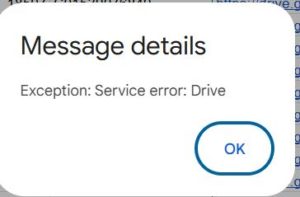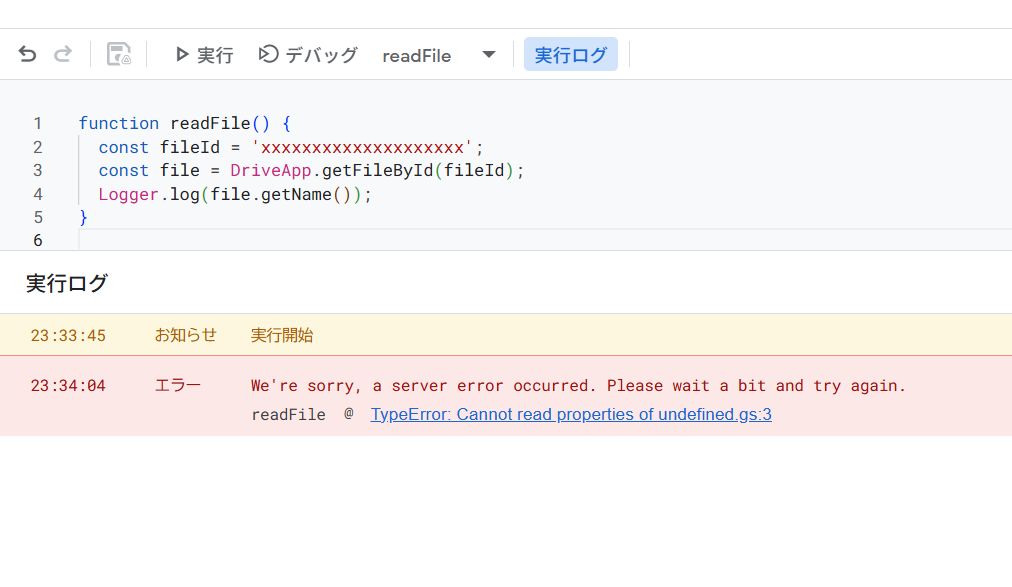
When executing Google Apps Script (GAS), you may encounter the following error message in the execution log, causing your script to stop.
We're sorry, a server error occurred. Please wait a bit and try again.Sometimes, this is accompanied by TypeError: Cannot read properties of undefined.
At first glance, this looks like a "temporary server outage on Google's side," but in most cases, it is caused by issues with the script's settings, permissions, or code.
In this article, I will explain the main causes of this error and how to fix them.
What is this Error?
This error message is a generic message displayed when the GAS execution environment "could not identify (or display) the specific cause of the error."
It occurs frequently when using DriveApp (Google Drive operations) or integrating with external APIs. Even if the real cause is "insufficient permissions" or "configuration errors," it is often masked as a "server error," making debugging difficult.
Common Causes and Solutions
Here are the causes and solutions in order of frequency.
1. Using a Standard GCP Project but Drive API is Disabled
If your GAS project is linked to a "Standard Google Cloud Platform (GCP) Project," you must explicitly enable the API on the GCP side, otherwise this error may occur.
Solution:
- Check the linked GCP Project Number in the GAS editor under "Project Settings".
- Open the Google Cloud Console and select the corresponding project.
- Go to "APIs & Services" > "Library".
- Search for Google Drive API and click "Enable".
- Return to the GAS editor and add Drive API from the "+" button under "Services".
2. Library Version is set to "HEAD (Development Mode)"
If you are using an external library and the version is set to "HEAD (Latest)", this error may occur when executed by someone other than the script owner.
Solution:
- Open the "Libraries" settings in the GAS editor.
- Change the version of the library from "HEAD" to a specific number (fixed version) and save.
3. Execution User Does Not Have File Access Permissions
This occurs if the current execution user does not have access rights to the file or folder specified by DriveApp.getFileById(id).
- Manual Execution: Does your account have permission?
- Trigger Execution: Does the user who created the trigger (execution identity) have permission?
- Web App: Is the Execute as setting set to Me or User accessing the web app?
Solution:
- Check the sharing settings of the target file and grant "Viewer" or higher permission to the execution user.
- For files in Shared Drives, check if external access is restricted by organizational policies.
4. Specifying Non-Existent or Invalid IDs
If the ID passed to getFileById is incorrect or the file has been deleted, it usually results in "Exception: File not found," but in some situations, it may be displayed as a "Server error."
Solution:
- Check if the ID is correct and does not contain extra spaces.
- Try using a try-catch block to see if you can catch the error correctly.
function checkFile() {
  const fileId = 'xxxxxxxx_your_file_id_xxxxxxxx';
  try {
    const file = DriveApp.getFileById(fileId);
    Logger.log(file.getName());
  } catch (e) {
    Logger.log('Error caught: ' + e.message);
  }
}
5. Genuine Google Outage (Rare Case)
If none of the above apply, there may genuinely be a temporary outage on Google's backend.
Solution:
- Wait a few minutes to a few hours and try running it again.
- Check the Google Workspace Status Dashboard.
Summary
When you see "We're sorry, a server error occurred," don't immediately blame Google. First, suspect the following settings:
- Forgot to enable API when linking GCP Project (e.g., Drive API)
- Library set to HEAD (when executed by non-owners)
- File/Folder Access Permissions
Reviewing these points will resolve the issue in most cases.
Category: GAS Tips
References:
- Google Apps Script – Drive Service https://developers.google.com/apps-script/reference/drive/drive-app
- Google Cloud Console – API Library https://console.cloud.google.com/apis/library