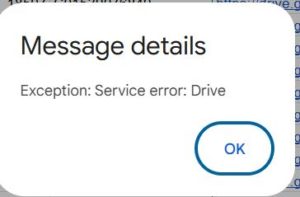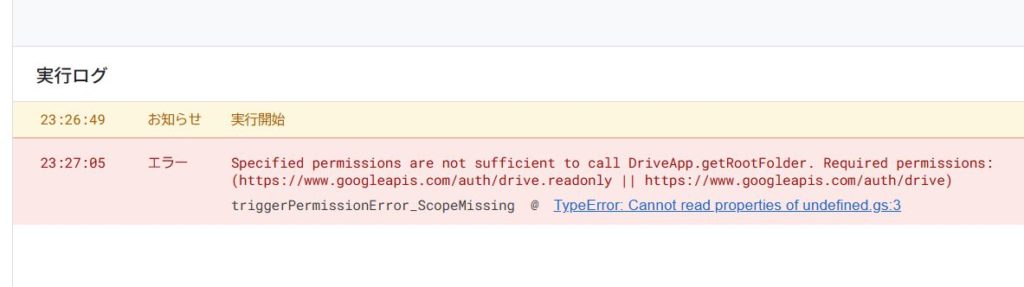
When developing with Google Apps Script (GAS), you may encounter an error message like this:
Specified permissions are not sufficient to call DriveApp.getRootFolder. Required permissions: (https://www.googleapis.com/auth/drive.readonly || https://www.googleapis.com/auth/drive)This error means "The permissions (scopes) specified in the manifest file (appsscript.json) are not sufficient to execute this action."
In this article, I will explain why this error occurs and provide step-by-step instructions on how to fix it.
Meaning and Cause of the Error
This error primarily occurs when you are manually managing oauthScopes in appsscript.json.
Normally, GAS automatically detects the services used in your code (such as SpreadsheetApp, DriveApp) and sets the necessary permissions (scopes) for you. However, once you explicitly list oauthScopes in appsscript.json, automatic detection is disabled, and only the listed scopes are valid.
In this state, if you execute a method that requires a scope not listed in the manifest (e.g., DriveApp.getRootFolder()), GAS will block it, saying "Specified permissions are not sufficient."
Common Scenario
Manual Manifest Management You have defined oauthScopes in appsscript.json but forgot to add the scope required for a newly added feature.
Code Example For instance, you have only authorized "Spreadsheets" in the manifest, but your code tries to access "Google Drive".
appsscript.json (Settings):
{
  "timeZone": "Asia/Tokyo",
  "exceptionLogging": "STACKDRIVER",
  "oauthScopes": [
    "https://www.googleapis.com/auth/spreadsheets"
  ]
}
Note: No Drive scopes are included.
Code (Execution):
function triggerPermissionError_ScopeMissing() {
  // Accessing Drive (Fails because 'drive' is missing from oauthScopes above)
  const root = DriveApp.getRootFolder();
  Logger.log(root.getName());
}
Running triggerPermissionError_ScopeMissing in this state will trigger the error mentioned at the beginning.
Difference from Similar Errors/Warnings
1. "This project requires your permission…" (Warning)
This is not an error but a pre-execution "warning." It informs you that the script needs permission to run. If you ignore this and try to force execution, it will lead to the error discussed here or a generic You do not have permission error.
2. "You do not have permission to call xxx"
Fundamentally, this is the same issue. However, Specified permissions… specifically implies "insufficient scope within the specified manifest" and often helpfully provides the exact missing scope URL.
Solution: Add the Missing Scope
The solution is simple: add the "Required permissions" URL shown in the error message to your appsscript.json.
Step 1: Check the Error Message
The required URL is listed inside the error text.
Required permissions: (https://www.googleapis.com/auth/drive.readonly || https://www.googleapis.com/auth/drive)
In this case, you need either drive.readonly (read-only) or drive (full access).
Step 2: Edit appsscript.json
Open appsscript.json from the "Project Settings" in the editor and add the URL to the oauthScopes array.
Corrected appsscript.json:
{
  "timeZone": "Asia/Tokyo",
  "exceptionLogging": "STACKDRIVER",
  "oauthScopes": [
    "https://www.googleapis.com/auth/spreadsheets",
    "https://www.googleapis.com/auth/drive.readonly"
  ]
}
Be careful not to forget the comma separator.
Step 3: Re-run and Authorize
After saving the file, run the function again. You will see an authorization dialog requesting the new permission (in this case, access to Google Drive). Allow it, and the error will be resolved, allowing the script to run normally.
Summary
When you see the Specified permissions are not sufficient to call xxx error, it is not a bug in your code but "insufficient settings in the manifest file (appsscript.json)."
- Copy the Required permissions URL from the error message.
- Add it to oauthScopes in appsscript.json.
- Re-run and authorize the permissions.
This procedure will reliably solve the issue.
Category: GAS Tips
References:
- Google Apps Script – Manifests https://developers.google.com/apps-script/concepts/manifests
- Google Apps Script – Scopes https://developers.google.com/apps-script/concepts/scopes