Google Chrome includes a quietly implemented split-view tab feature that makes multitasking significantly smoother. If you often compare search results, read documentation while working, or keep multiple tools open, this feature can boost productivity instantly.
Below is a simple, practical walkthrough of how it works.
■ What Chrome’s Split View Does
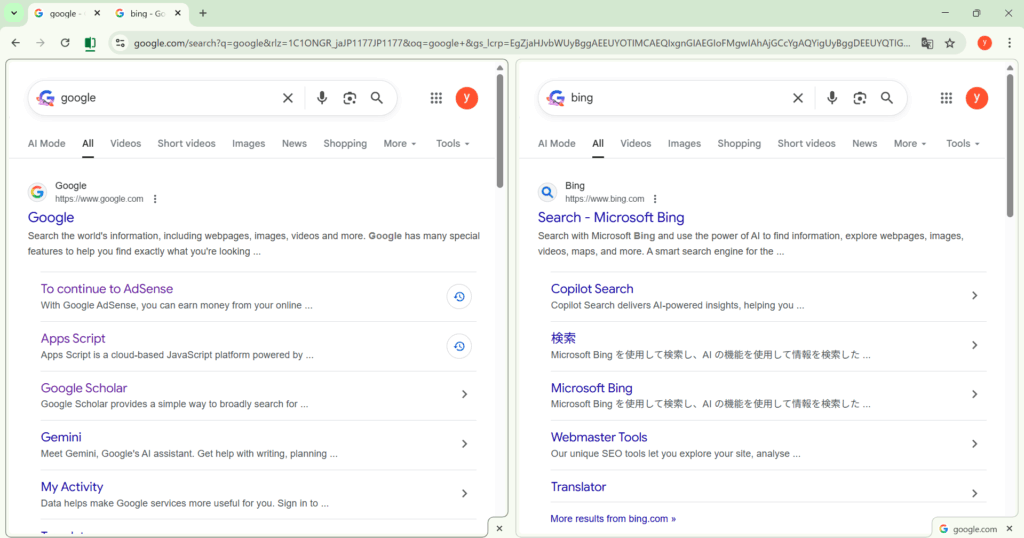
It allows two tabs to be displayed side-by-side within the same window, without manually resizing windows. Chrome automatically arranges them, making comparisons and parallel work effortless.
■ How to Use Chrome’s Split-View Tabs (Windows)
1. Right-click the tab you want to split
Open the tab, then right-click it to reveal the tab options menu.

2. Select “Open in new tab group to the right” or “Open tab on the right”
Depending on Chrome’s version, the label may differ slightly, but the action is the same:
Chrome creates a split layout with the current tab on the left and the new tab on the right.
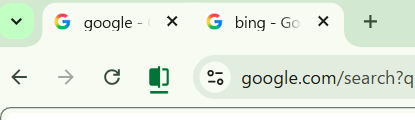
3. Chrome instantly arranges your screen into two vertical panels
Each panel behaves independently:
- Scroll separately
- Open links independently
- Perform searches in each tab
This makes it ideal for comparing websites, reading documentation while coding, or checking search results from two engines at once.
4. Work in both tabs as if they were separate windows
The split layout remains within a single Chrome window, reducing clutter and eliminating the need for Alt-Tab switching.
■ Why This Feature Is Useful
1. Fast comparison between two pages
Great for reviewing Google vs. Bing results, comparing product pages, or reading two documents at the same time.
2. Perfect for research and technical work
Split-view makes it easy to keep reference material open on one side while working on the other.
3. No window-management hassle
No manual resizing, no stacking windows—Chrome handles it automatically.
■ Who Will Benefit Most
- Researchers
- Developers
- Bloggers and SEO analysts
- Students
- Anyone who keeps multiple tools open
The feature is lightweight but dramatically improves workflow.