
When working in VS Code, you may suddenly run into this error even though VS Code claims the package was installed correctly:
ModuleNotFoundError: No module named 'pandas'
In my actual environment (Windows, VS Code, Python 3.13.7 venv), this occurred while running the following command:
python -c "import pandas; import openpyxl; print('Libraries available')"
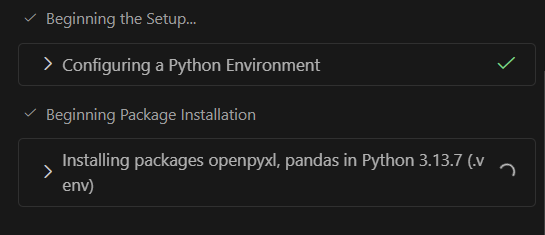
The installation panel stated that pandas and openpyxl were being installed, but the terminal insisted they didn’t exist. The issue wasn’t pandas itself—it was the Python interpreter VS Code decided to use.

Why this error appears
This problem almost always comes from VS Code pointing to a different Python interpreter than the one where your packages were installed. Even if .venv contains the correct packages, the terminal may still be running your system’s Python. When the interpreter and the installation location don’t match, the error appears exactly as shown:
ModuleNotFoundError: No module named 'pandas'
How it was resolved
The fix was straightforward once the root cause became clear:
- Select the correct Python interpreter
Click the Python version indicator in the lower-left corner of VS Code and pick the.venvinterpreter. - Activate the virtual environment manually
.\.venv\Scripts\activate - Reinstall the packages inside the activated environment
pip install pandas openpyxl
After switching the interpreter and confirming the environment was active, the import error disappeared immediately.
Why including exact error strings boosts search visibility
Error-driven articles perform best when the full error text appears exactly as users copy and paste it into search engines. For this issue, the following strings tend to capture search traffic effectively:
ModuleNotFoundError: No module named 'pandas'
python -c "import pandas; import openpyxl; print('Libraries available')"
Since users often search by pasting errors verbatim, placing these lines directly in the article helps ensure your content surfaces for highly specific troubleshooting queries.
References
- Visual Studio Code — Python Environments
https://code.visualstudio.com/docs/python/environments - Python venv Documentation
https://docs.python.org/3/library/venv.html - pip User Guide
https://pip.pypa.io/en/stable/
