TL;DR
Text Chat: The app must stay open on your screen. If you close it or turn off the display, the connection pauses by design.
Voice Mode: Enable Background Conversations to keep the conversation going even when the app is in the background.
This issue mostly appears on smartphones, not on desktop.
Introduction
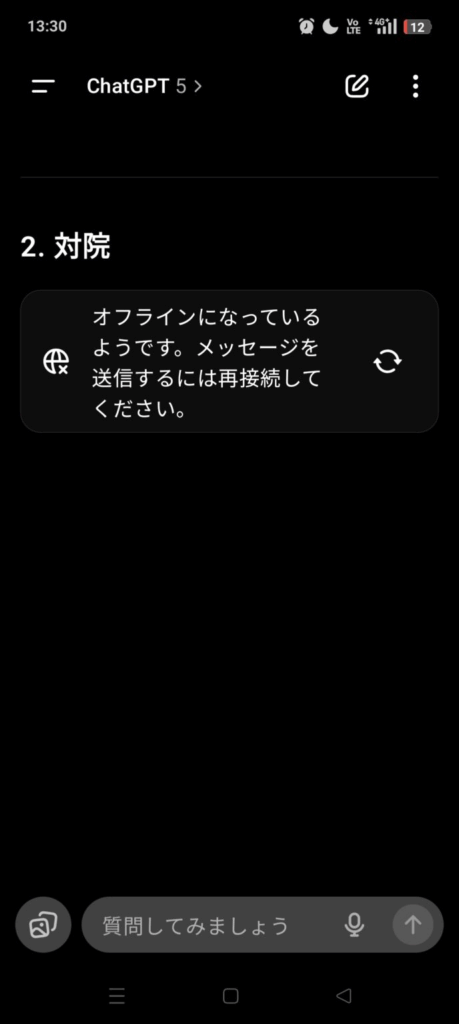
When using ChatGPT on a smartphone, you may suddenly see the message:
“You appear to be offline. Please reconnect to send messages.” “You appear to be offline. Please reconnect to send messages.”
Even with a stable internet connection, this message can still show up. I experienced this myself and researched why it happens.
The short answer: it’s normal behavior based on how mobile apps handle background activity.
The Core Explanation
📌 Text Chat
- ChatGPT pauses its connection when the app is in the background.
- If you switch apps or turn off the screen, the connection stops.
- When you return, the app tries to resume and shows the “offline” message.
📌 Voice Mode (Voice Conversations)
- A special option called Background Conversations allows the app to continue listening even if the screen is off.
- With this setting enabled, voice chat works in the background.
In short:
- Text chat = must stay on screen.
- Voice chat = background OK if enabled.
Why the “Offline” Warning Appears
Smartphones aggressively manage background processes to save battery. When ChatGPT is not on the active screen, the system temporarily suspends network activity.
So when you come back to the app, it tries to reconnect, resulting in the appearance of the offline notice.
This is expected behavior for many apps that rely on real‑time communication.
How to Fix It
For Text Chat
- Keep the ChatGPT app open on the screen.
- Do not lock your phone or switch to other apps while typing or waiting for a reply.
For Voice Mode
- Open Settings in the ChatGPT app.
- Go to Voice.
- Turn on Background Conversations.
If It Still Won’t Connect
- Press the reconnect icon.
- Restart the app.
- Toggle between Wi‑Fi and mobile data.
Conclusion
Most “offline” warnings are caused simply by the app going to the background. As long as you keep ChatGPT open for text chat—or enable background mode for voice—you’ll avoid the issue.
Understanding this behavior makes the message far less confusing.