TL;DR
- This error appears when ChatGPT detects too many requests, suspicious patterns, or network anomalies coming from your device.
- Most cases are harmless and caused by VPNs, unstable networks, rapid requests, or browser/app glitches.
- Fixes include disabling VPN, switching networks, reducing rapid refreshes, or logging out/in.
Introduction
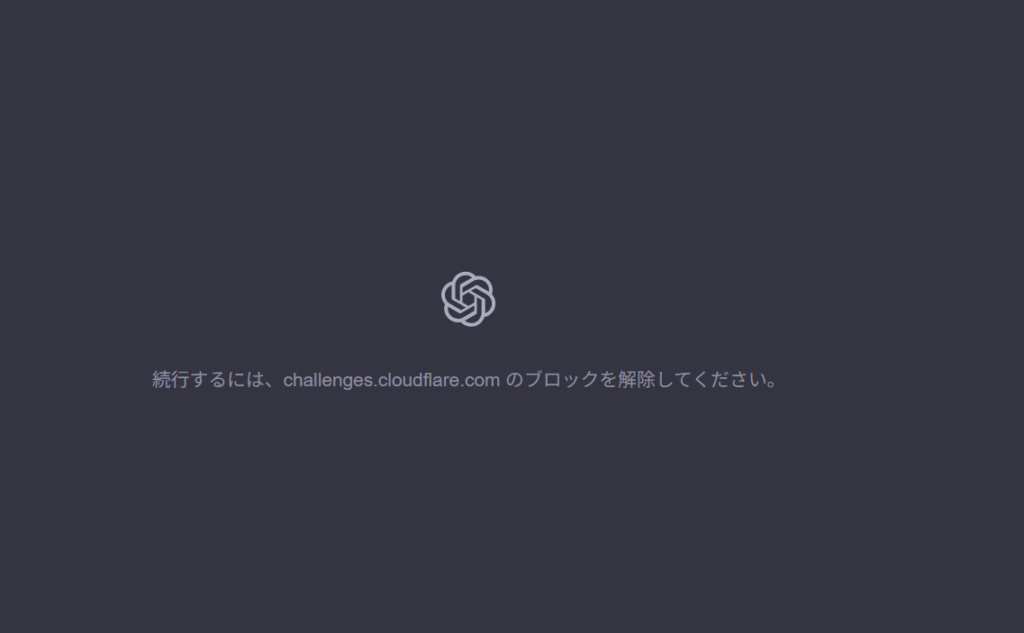
Some users encounter the message:
“We’ve detected unusual activity from your device.”
Even if you’re using ChatGPT normally, this warning may appear. It does not mean your account is hacked. Most of the time, it’s an automated protection mechanism reacting to network or usage patterns.
This guide explains the common causes and how to resolve them.
Why the Error Happens
ChatGPT has security systems that detect and block traffic that looks abnormal. The following are the most frequent causes.
1. VPN or Proxy
Many VPN servers share IP addresses among large numbers of users.
- ChatGPT may detect concentrated traffic from a single IP and mark it as unusual.
2. Rapid or Automated Requests
Even normal user behavior can look automated if:
- You refresh the page repeatedly
- You send many prompts quickly
- You switch conversations too rapidly
3. Network Instability
Unstable Wi-Fi or frequent switching between Wi-Fi ↔ mobile data can trip the protection.
4. Multiple Devices Using the Same Account
If you log in on many devices at once, ChatGPT may flag the pattern.
5. Browser or App Cache Corruption
Sometimes a stale token or corrupted cache causes authentication inconsistencies.
6. OpenAI-side Temporary Protection
During high-traffic times, the system becomes more sensitive and triggers this warning even for normal use.
How to Fix the Error
Here are the most effective solutions, from easiest to most advanced.
1. Turn Off Your VPN or Proxy
This solves the issue in most cases.
- Disable VPN
- Disable iCloud Private Relay (iOS)
- Disable corporate proxies
2. Switch Networks
Try:
- Wi-Fi → Mobile data
- Mobile data → Wi-Fi
3. Close and Reopen the ChatGPT App / Browser
A fresh session removes corrupted state.
4. Log Out and Log In Again
Resets access tokens and clears suspicious state.
5. Clear Browser or App Cache
On mobile apps:
- Force stop → Clear cache → Reopen
On browsers:
- Clear cookies for chatgpt.com
6. Reduce Rapid Requests
Slow down:
- Page refreshes
- Conversation switching
- Prompt spamming
7. Wait 10–20 Minutes
Sometimes the protection timer resets automatically.
When You Should Be Concerned
You only need to worry if:
- You see logins from unknown locations
- Your account email or password has been changed without your action
Otherwise, the error is not an account security breach.
Conclusion
The “Unusual Activity From Your Device” error is a protective mechanism—not an indication of hacking. Most users can fix it by adjusting network settings, disabling VPNs, or refreshing their session.
Once you understand the causes, it’s easy to prevent this warning from appearing again.