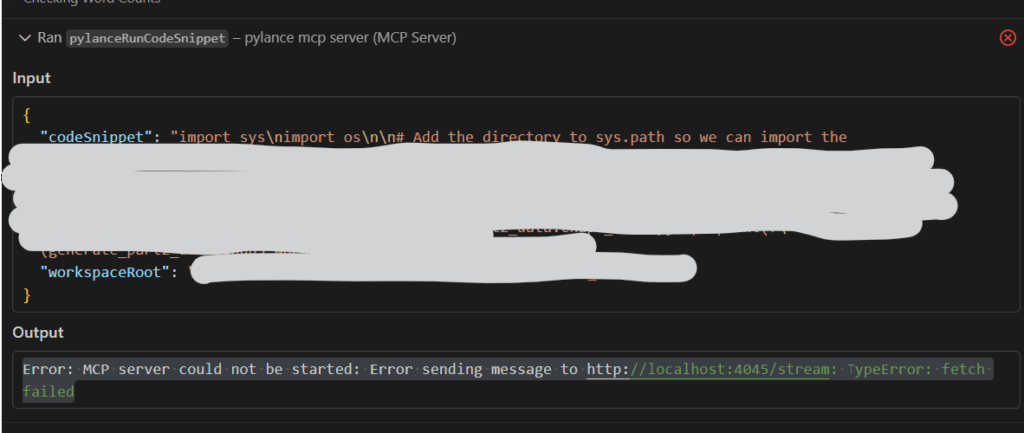
When running a code snippet with Copilot Agent inside VS Code, you may suddenly see the following error:
“MCP server could not be started: Error sending message to http://localhost:4045/stream: TypeError: fetch failed”
This happened in your environment as well (VS Code / Copilot Agent / Windows 10).
The message indicates that the local MCP server could not be reached because the fetch request to localhost:4045 failed.
1. What this error really means
It simply means:
Copilot Agent tried to connect to the local Model Context Protocol (MCP) server, but the local HTTP connection failed.
MCP runs as a local background service.
If it is not running—or if something blocks the connection—you see this error.
2. Most common causes
● Cause 1: MCP server was never started
VS Code sometimes fails to spawn the local MCP process, leaving port 4045 unused.
● Cause 2: Windows Firewall / Antivirus blocked the request
Even localhost HTTP traffic can be blocked on Windows.
● Cause 3: Copilot Agent session became corrupted
Heavy or prolonged usage can freeze internal processes.
● Cause 4: Extension conflicts
Python debugging tools or other language servers may try to bind to the same port.
Given your situation, the most likely cause is a frozen Copilot Agent process after extended usage.
3. Quick fixes (try in this order)
① Fully restart VS Code
Close VS Code → open Task Manager → kill all Code / Node / Copilot processes → reopen.
② Run the Agent prompt again
In your case, retrying the action made it succeed immediately.
If it’s a temporary fetch failure, this often resolves it.
③ Allow VS Code and Node.js in Windows Firewall
Localhost traffic should be allowed, or the MCP connection may fail.
④ Check if port 4045 is occupied
Run:
netstat -ano | findstr :4045
If another process is using it, VS Code cannot start MCP.
⑤ Disable conflicting extensions
Especially Python or debugging extensions that spawn local servers.
4. How to prevent recurrence
- Restart VS Code occasionally
- Avoid running Agent tasks continuously without breaks
- Add VS Code and Node to the firewall allow-list
- Avoid running multiple debuggers that may compete for ports
References
- Visual Studio Code — Troubleshooting guide
https://code.visualstudio.com/docs/supporting/troubleshooting - GitHub Copilot documentation – Agents & MCP
https://docs.github.com/en/copilot - Node.js Localhost networking issues(StackOverflow)
https://stackoverflow.com/questions/49416582/node-fetch-failed-on-localhost