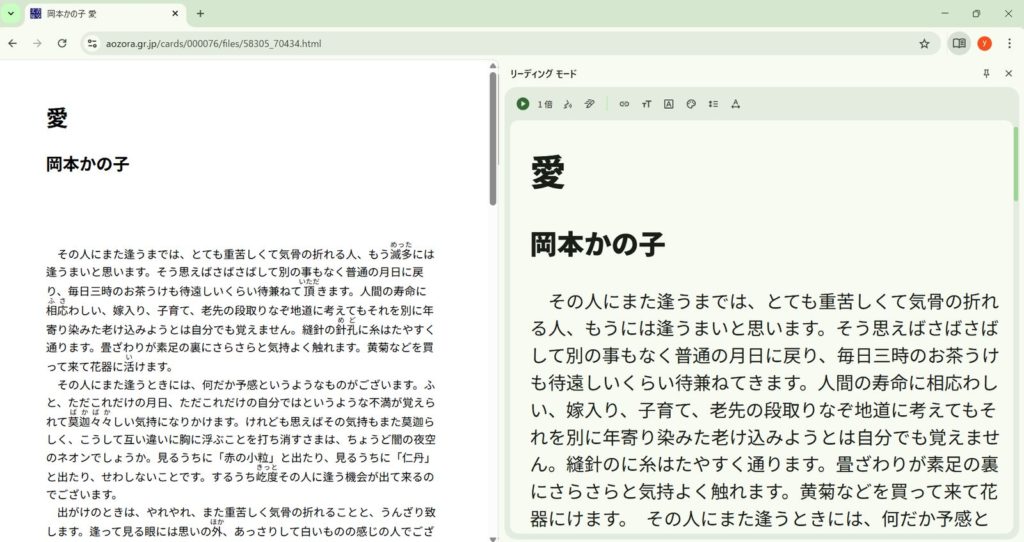
I stumbled upon "Reading Mode" while messing around with Chrome. I tried it out, and it was incredibly convenient for reading articles, so I'm sharing it.
What is Chrome's "Reading Mode"?
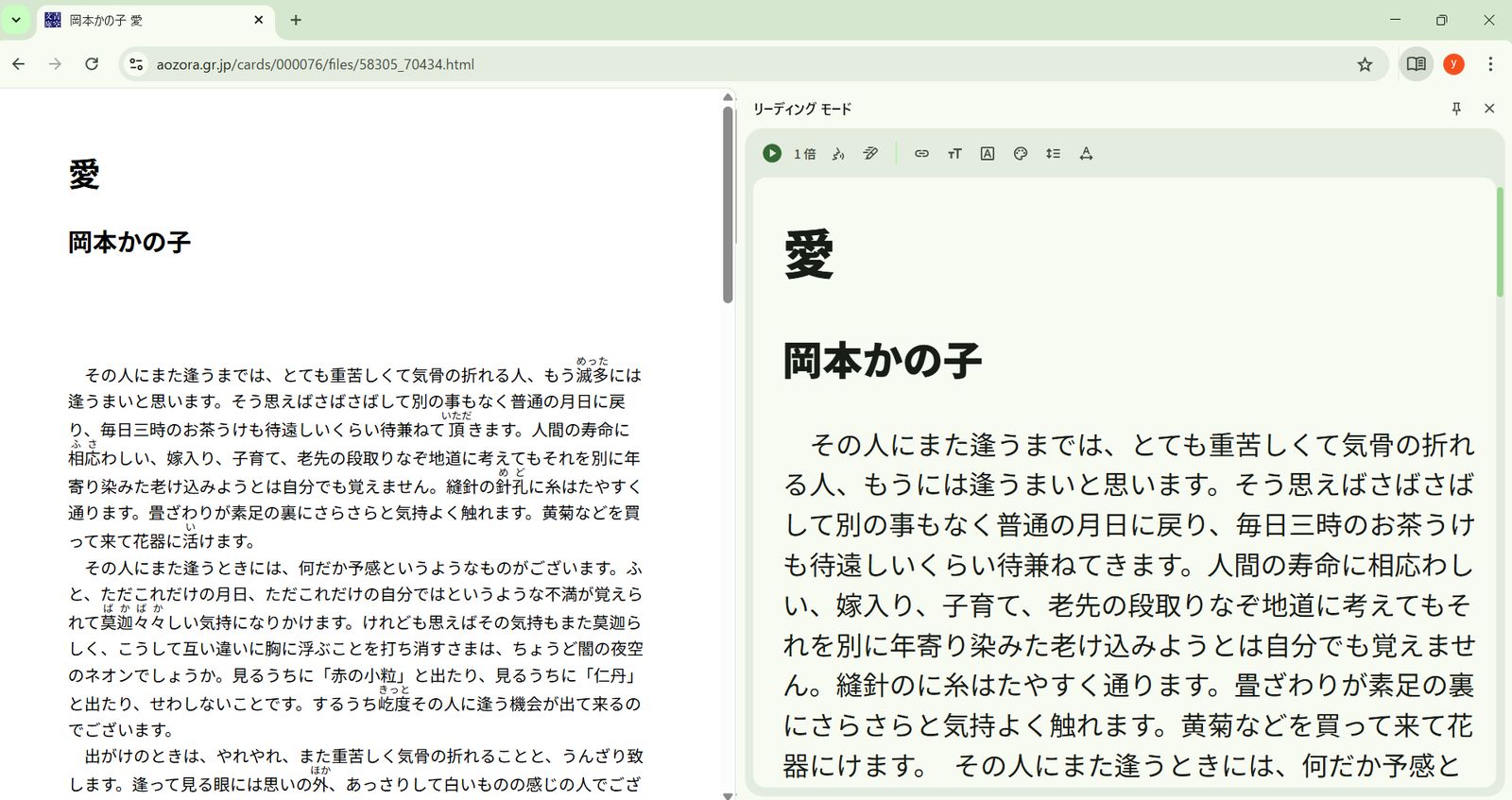
Chrome's Reading Mode is a feature that removes ads, sidebars, and unnecessary UI from web pages, displaying only the main text in an easy-to-read format. Think of it as a "Focus Mode" specialized for viewing articles, blogs, and technical documents.
What can it do? (Main Features)
- Extract & Display Text Only: Hides ads, related articles, comments, and navigation.
- Change Text Size: Make it larger to read long texts comfortably.
- Change Font: Switch to Serif/Sans-serif or other readable fonts.
- Switch Background Color: Supports White, Sepia, and Dark Mode.
- Stable Display: Less layout shifting or flickering.
Note: Videos and interactive elements are generally not displayed.
How to Use
Method 1: Icon in the Address Bar (Supported Pages Only)
- Open an article page.
- Click the book-like icon if it appears on the right side of the address bar.
- It switches to Reading Mode.
Note: It doesn't appear on all pages (only when Chrome recognizes the article structure).
Method 2: Pin from Side Panel (Recommended)
Once you have Reading Mode open, you can pin it to your toolbar for easy access.
- Open Reading Mode (via right-click or address bar).
- Click the "Pin" icon in the top right of the side panel.
Now, the "Reading Mode" button will stay on your toolbar. You can toggle it with a single click.
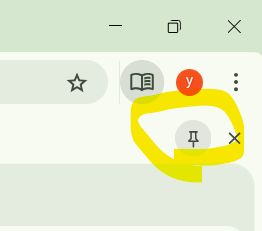
Note: The option often doesn't appear in the Chrome Settings menu, so this method is more reliable.
Method 3: From Right-Click (Depends on Environment)
Right-click on the page text → "Open in Reading Mode" (This may not appear in some environments).
Controls in Reading Mode
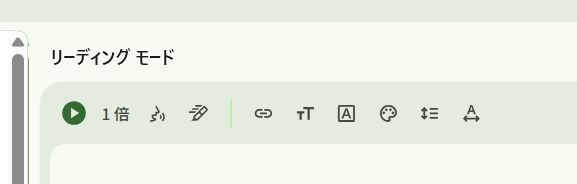
You can customize it to your liking with the toolbar at the top of the screen.
- Aa (Text Settings): Font size, Font type
- Background Color: White / Sepia / Dark
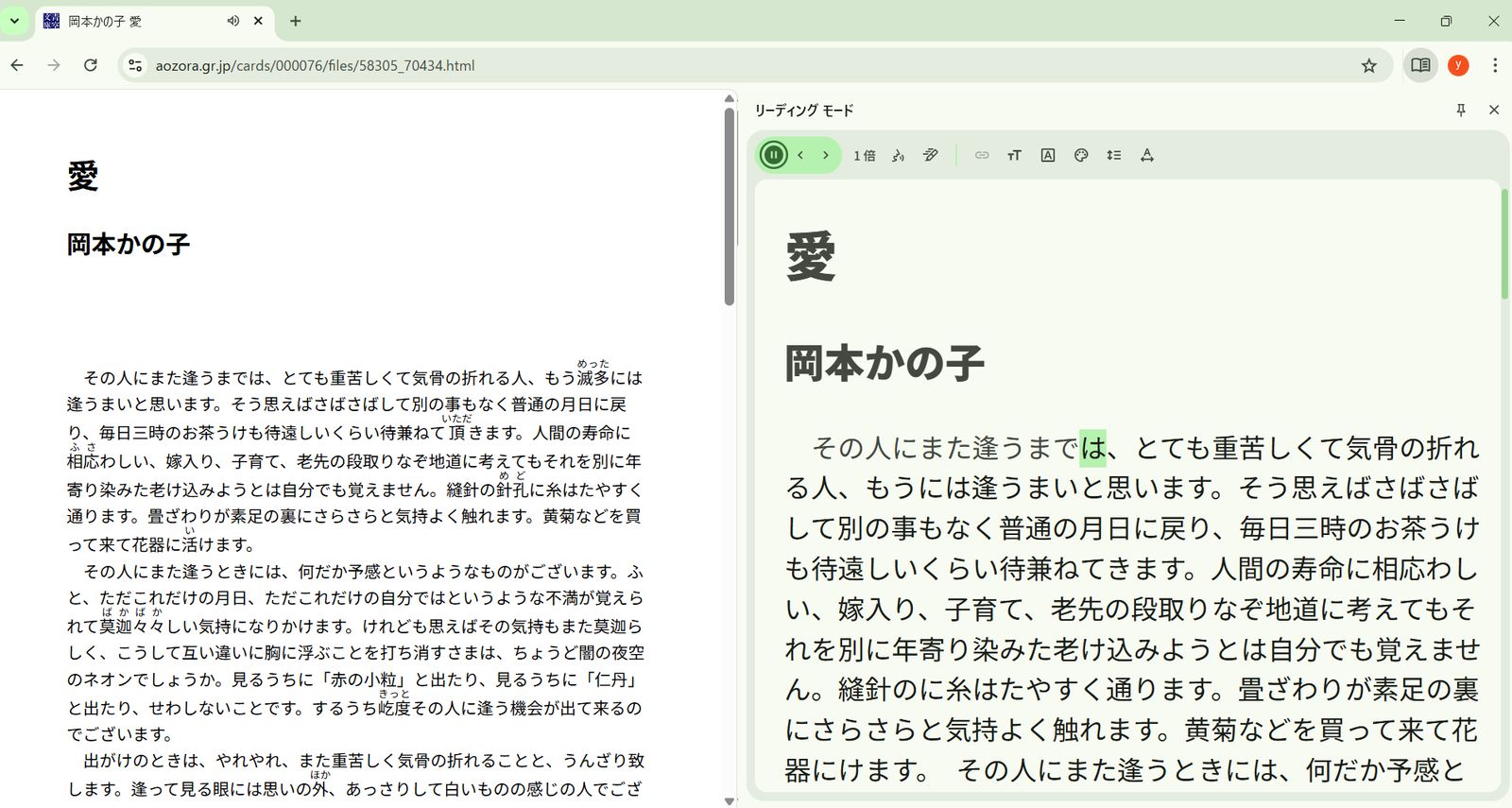
The "Read Aloud" feature is surprisingly useful. You can listen to long articles like a radio, making it great for "listening while working".
Who is this for?
- People reading technical articles, papers, or long blogs.
- People who want to focus on sites with many ads.
- People who want to reduce eye strain (Dark/Sepia).
Points to Note / Limitations
- Often unusable on EC sites or admin panels.
- Tables and code blocks may be simplified.
- Comments and related articles cannot be read.
In a Nutshell
If you want to concentrate solely on "reading", this is one of the strongest standard features in Chrome. Especially for those reading technical or academic long-form texts, there's no loss in keeping it ON.