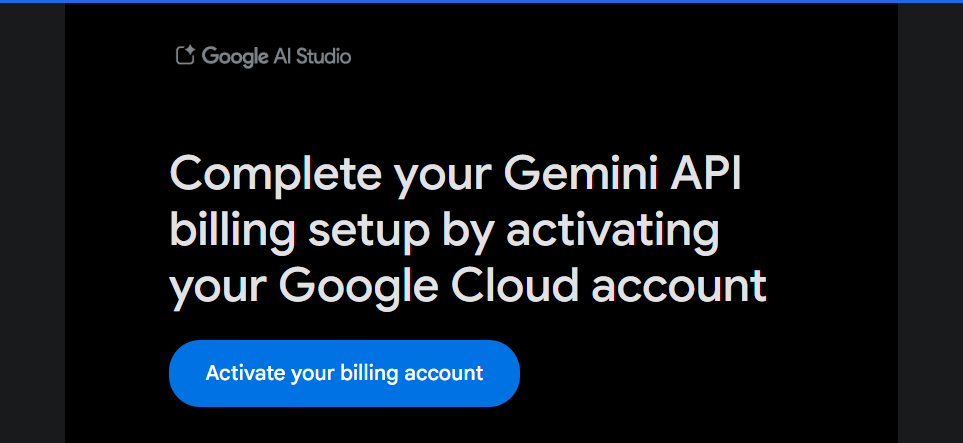
When I tried to use the Gemini API, I suddenly got this screen:
Complete your Gemini API billing setup by activating your Google Cloud account
(Activate your billing account)
And the API refused to work.
Good news: this message is not a real “error.”
It simply means your Google Cloud billing isn’t fully activated yet.

The fix takes less than 3 minutes.
Why this message appears
Gemini API runs on Google Cloud’s billing system.
So this message appears when:
- You haven’t created a billing account yet
- OR your billing account isn’t linked to the project
- OR you’re trying to use the API without completing the first-time activation (even free users must do this)
Even if you only plan to use the free tier, Google still requires an initial billing activation.
How to fix it (very simple)
Click the blue button:
Activate your billing account
Then follow these quick steps:
1. You’ll be taken to Google Cloud Billing Setup
No coding needed.
2. Add a payment method
You can use:
- Credit card
- Debit card
- Some regions support post-pay for business accounts
Google often applies free credits automatically once billing is activated.
3. Link the billing account to your project
You’ll see a prompt like:
“Enable billing for this project?” → Yes
After this, Gemini API becomes available immediately.
How long until it works?
In my case:
- Finished activation
- Gemini API worked ~30 seconds later
Sometimes it takes 1–3 minutes for Google Cloud to sync.
If it still doesn’t work, check these
① Wrong project selected
Google AI Studio might be pointing to a different project.
Check the top-right project selector.
② Billing account is “disabled”
This can happen if your card expired or was declined.
③ Gemini API / Generative Language API is not enabled
Go to Google Cloud → APIs & Services → Enable APIs.
Takeaway
This message is almost always:
“Billing isn’t activated yet — please finish this step.”
It’s not a serious error.
Once activated, the screen disappears permanently and Gemini API works normally.