TL;DR
If you are trying to use footnotes in Markdown on VS Code and:
- The default Markdown Preview does not work
- Markdown Preview Enhanced (MPE) behaves inconsistently
- Footnotes disappear or fail to render
👉 Stop fighting the preview system and use a dedicated footnote plugin instead.
The Problem: Markdown Footnotes in VS Code Are Surprisingly Painful
Many people assume that Markdown footnotes like this:
This is a sentence.[^note]

[^note]: This is a footnote.
should “just work” in VS Code.
In reality:
- VS Code’s built-in Markdown Preview does not officially support footnotes
- Footnote syntax may appear as plain text
- Definitions may disappear entirely in preview
This leads users to try more complex solutions.
Common (But Ineffective) Attempts
1. Using the Default VS Code Markdown Preview
The default preview simply does not implement footnote parsing.
Even though the syntax is valid Markdown, the preview ignores it.
2. Using Markdown Preview Enhanced (MPE)
Markdown Preview Enhanced is powerful, but for footnotes:
- Footnote behavior is not clearly documented
- Rendering can be inconsistent
- Small structural changes may break footnotes
If your goal is only footnotes, MPE is overkill and unreliable.
The Final Solution: Use a Dedicated Footnote Plugin
Recommended Extension
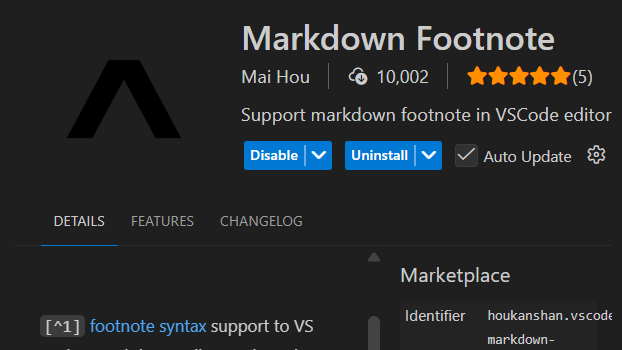
Markdown Footnote
Author: Mai Hou
This extension exists for one purpose only:
👉 proper footnote support in VS Code.
Search for “Markdown Footnote” in the VS Code Marketplace and install it.
How It Works (Simple and Stable)
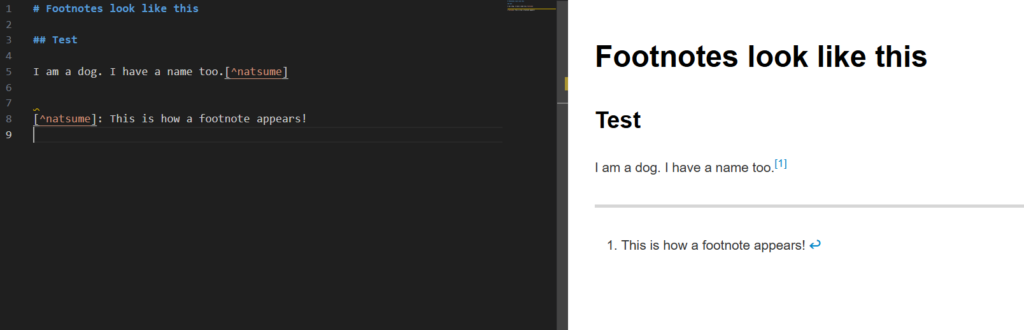
Markdown Source
# Footnotes look like this

## Test

I am a dog. I have a name too.[^natsume]

[^natsume]: This is how a footnote appears!
Preview Result
- Inline reference automatically becomes
[1] - Footnotes are rendered at the bottom
- A return link (↩) lets you jump back to the text
No configuration. No hacks. It just works.
Why This Approach Is the Best
1. Write Using Meaningful Labels
[^natsume]
- No manual numbering
- Safe to reorder paragraphs
- Easy to read and maintain
2. Automatic Numbering in Preview
- Footnotes look academic and professional
- Readers see clean numbered notes
3. Compatible with Pandoc and Word
- Markdown source remains clean and standard
- Preview behavior is editor-only
- Ideal for academic writing and long documents
Conclusion
- VS Code default Markdown Preview → ❌ Not suitable for footnotes
- Markdown Preview Enhanced → ⚠️ Overkill and unreliable for footnotes
- Markdown Footnote plugin → ✅ Simple, stable, and correct
If you need footnotes in Markdown on VS Code,
stop tweaking previews and use a plugin built for the job.
This is currently the most reliable solution.
