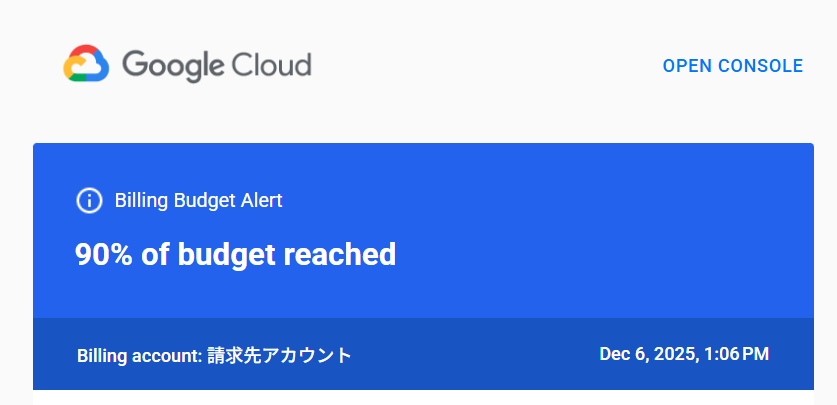
If you are using Google Cloud, you may suddenly receive an email titled “Billing Budget Alert – 90% of budget reached.”
In my environment, the alert arrived on Dec 6, 2025 at 1:06 PM, which made me double-check my usage immediately.
In short, this alert simply means that your actual spending has reached 90% of the budget you previously set.
Since unexpected cost spikes do happen in Google Cloud, it is always better to check the details before ignoring the warning.
Below is a simple guide based on the real case.
■ Why does the 90% alert appear?
Because your spending is about to exceed the Budget you configured in the Billing Console.
Example:
- Budget = 1,000 JPY
- Spending exceeds 900 JPY
→ Email alert is triggered.
Note: a Budget does not stop billing. It only notifies you.
■ What to check first
When the alert shows up, it usually means one of the following:
• Unexpected increase in API / service usage
Cloud Run, Cloud Functions, BigQuery, and Vertex AI can accumulate costs quickly.
• Free tier exceeded
Once you go past free quotas, fees can jump.
• Cross-region network traffic
A hidden cost factor.
• Storage growing over time
Old backups in Cloud Storage often remain unnoticed.
■ Recommended actions
• Check Billing → “Cost Breakdown”
This is the fastest way to locate the cost-increasing service.
• Stop services that are spiking
Cloud Run and Cloud Functions can be disabled temporarily.
• Adjust your Budget amount
Useful when you expect usage growth.
• Add multiple alert thresholds
(50%, 90%, 100% etc.)
■ My actual case (Dec 2025)
The 90% budget alert was triggered because:
- Cloud Run calls increased
- API load was slightly higher than usual
After checking the billing dashboard, I fine-tuned the service usage and increased the budget threshold slightly.
■ Conclusion
Budget alerts are not errors—they are early-warning indicators that keep billing under control.
Whenever the alert arrives:
- Check the billing breakdown
- Identify abnormal spending
- Adjust usage or budget
Following this process will prevent unexpected charges and keep your cloud costs stable.