This guide explains how to add an “Open with VS Code” option to the Windows File Explorer right-click menu, allowing you to open folders and files in Visual Studio Code with ease. It covers checking installation options, enabling the code command in PATH, manually editing the registry, and retrieving your Windows username.
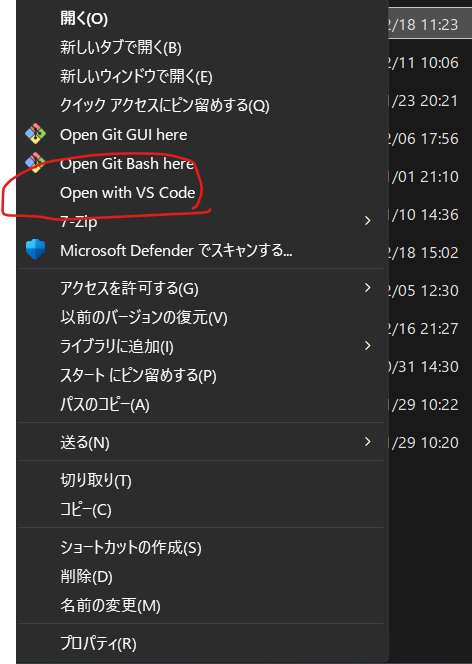
1. Check VS Code Installation Options
During installation, VS Code provides an option to add “Open with VS Code” to the Explorer context menu.
If this option is enabled, the right-click menu will automatically include the command.
If it was not enabled during installation, you can either reinstall VS Code with the option checked or configure the setting manually using the steps below.
2. Add the code Command to PATH via Command Palette
- Launch VS Code.
- Press Ctrl + Shift + P to open the Command Palette.
- Run Shell Command: Install ‘code’ command in PATH.
This makes the code command available from the command line, which is required for some system-level integrations.
3. Add “Open with VS Code” Manually Using the Registry Editor
By editing the Windows registry, you can manually add the “Open with VS Code” option to both folder and file right-click menus.
3.1. Open the Registry Editor
- Press Win + R to open the Run dialog.
- Type regedit and press Enter.
3.2. Add the Option to the Directory (Folder) Right-Click Menu
- Navigate to:
HKEY_CLASSES_ROOT\Directory\shell - Under shell, create a new key named VSCode.
- Set its default value to:
Open with VS Code - Inside the VSCode key, create another key named command.
- Set the default value of the command key to:
"C:\Users\{Username}\AppData\Local\Programs\Microsoft VS Code\Code.exe" "%V"Replace{Username}with your actual Windows user name.
3.3. Add the Option to the File Right-Click Menu
- Navigate to:
HKEY_CLASSES_ROOT\*\shell - Create a key named VSCode.
- Set its default value to:
Open with VS Code - Create a command key under VSCode.
- Set its default value to:
"C:\Users\{Username}\AppData\Local\Programs\Microsoft VS Code\Code.exe" "%1"
3.4. Apply the Changes
Restart your PC or restart File Explorer to apply the new context menu entries.
4. How to Find Your Windows Username
To correctly specify the path in the registry, you must know your Windows username. You can confirm it using one of the following methods:
4.1 Using Command Prompt
- Press Win + R, type
cmd, and press Enter. - Run:
echo %USERNAME%
4.2 Using File Explorer
- Press Win + E to open File Explorer.
- Navigate to:
C:\Users\ - The folder names inside represent user accounts; your own user folder name is the username.
4.3 Using PowerShell
- Press Win + R, type
powershell, and press Enter. - Run:
$env:UserName
Use the retrieved username to replace {Username} in the registry paths.
By following these steps, you can successfully add “Open with VS Code” to the Windows File Explorer right-click menu, making your workflow smoother and more efficient.
