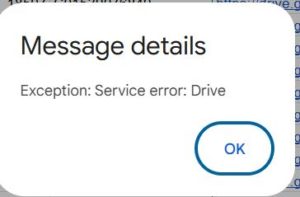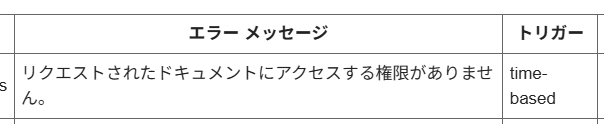
When using Google Apps Script, everything may work perfectly when you run your code manually — yet fails only when the trigger runs, sending you an email like this:
You do not have access to the requested document.
Trigger: time-based
This happened in my own environment as well. The script worked fine when executed manually, but the time-based trigger kept failing with a permission error.
Below is a clear explanation of why this happens and how to fix it quickly.
Why manual execution works, but trigger execution fails
This discrepancy is caused by how GAS handles authorization scopes when a trigger executes code “on your behalf.”
Even if you have full access to a file, the trigger may not.
Common reasons:
● You are not the owner of the target Spreadsheet/Document
Even with edit access, triggers sometimes cannot access a file unless the script owner also owns the file.
● The script project and the file are owned by different accounts
Container-bound scripts (Sheets/Docs → GAS) are particularly sensitive to this.
● The trigger was created under a different Google account
This happens often when Chrome is logged into multiple accounts.
● GAS requires re-authorization
If GAS hasn’t been re-authorized for a long time, triggers silently lose access.
● Workspace admin restrictions
Organization accounts may block certain cross-file or external accesses.
How to fix it — follow these steps in order
These steps resolve almost all cases.
In my environment, the issue disappeared after re-authorization and rebuilding the trigger.
1. Re-authorize the script manually
Open the Script Editor → Run any function → Approve the access request popup.
Most permission errors vanish here.
2. Make yourself the owner of the target file
Open Google Drive → Right-click the file → Share → Transfer ownership.
Triggers work far more reliably when the script owner also owns the file.
3. Delete the trigger and create it again
Time-based triggers often lose their internal permission binding.
4. Verify you’re running the script under the correct Google account
Multiple Chrome logins frequently cause silent permission mismatches.
5. Check Workspace admin settings (if applicable)
If using a company/school account, external access may be limited.
Tips to prevent this error in future
- Keep file ownership consistent (script owner = file owner).
- Recreate triggers after large permission or file-structure changes.
- Always “Run manually → then test trigger execution” to confirm authorization.
- Avoid mixing Google accounts when editing or deploying scripts.
Conclusion
This error is confusing because it suggests a coding mistake, but in reality it is usually caused by GAS authentication and file-ownership rules, not your script.
Once I re-authorized the script and rebuilt the trigger, everything ran normally again.
If you’re facing the same issue, the checklist above should solve it quickly.
Reference URLs (title + raw URL)
- Google Apps Script — Installable Triggers
https://developers.google.com/apps-script/guides/triggers/installable - Script Authorization and Scopes
https://developers.google.com/apps-script/concepts/scopes - Google Workspace Admin: API Access Restrictions
https://support.google.com/a/answer/60757