Problem: Can't Run gog auth login
After installing gogcli (Google CLI tool), running gog auth login shows this error:
OAuth credentials not configured. Run: gog auth credentials
Solution 1: Configure OAuth Credentials
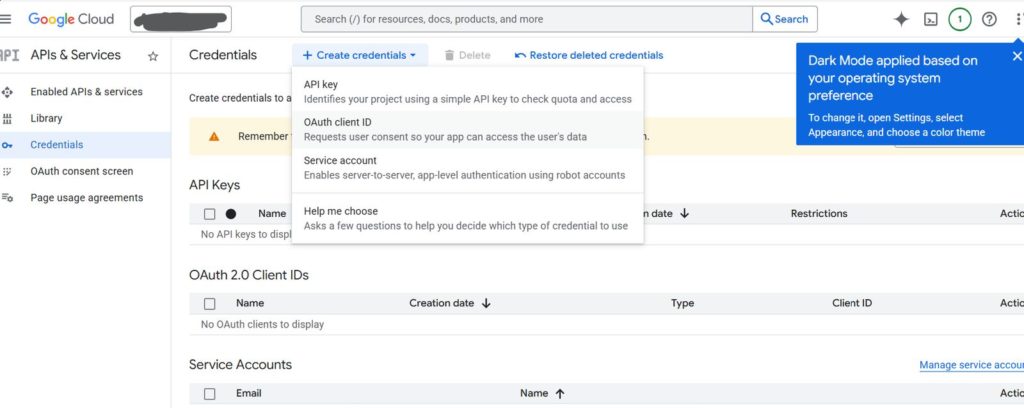
You need to set up the OAuth client JSON file obtained from Google Cloud Console.
Steps
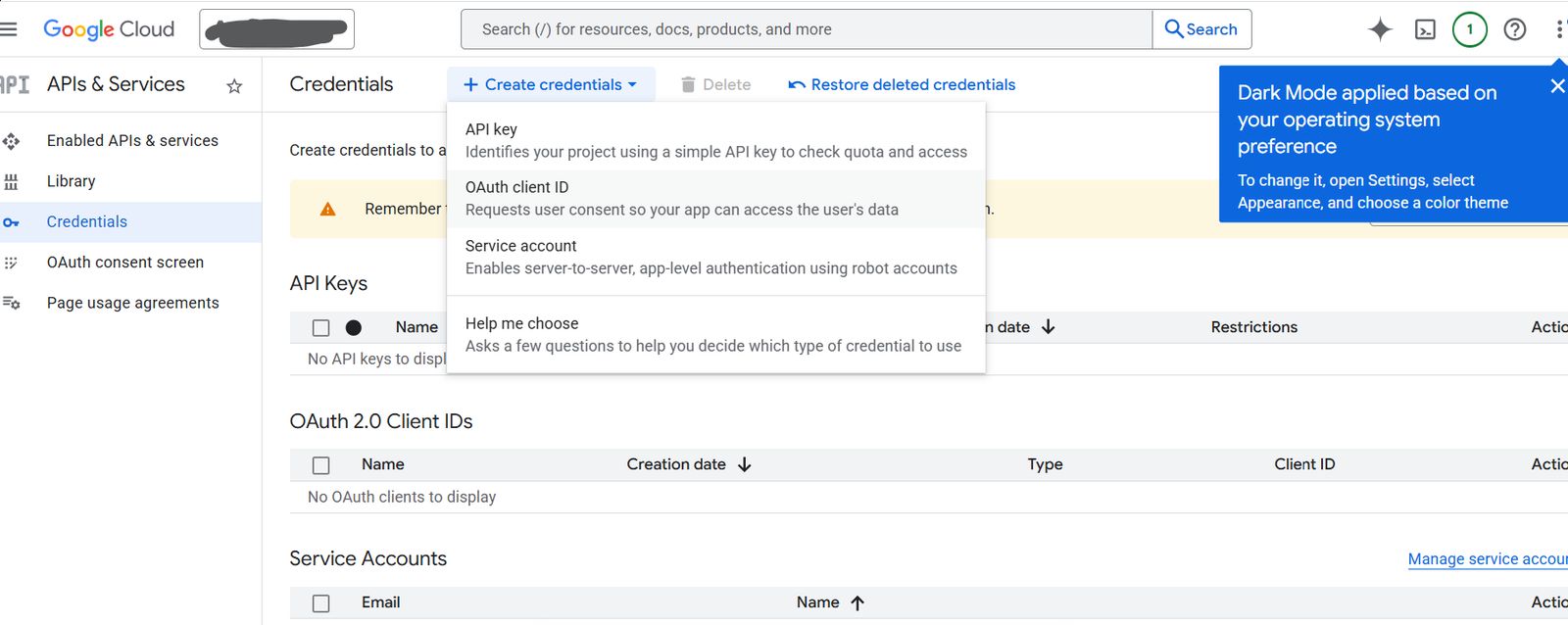
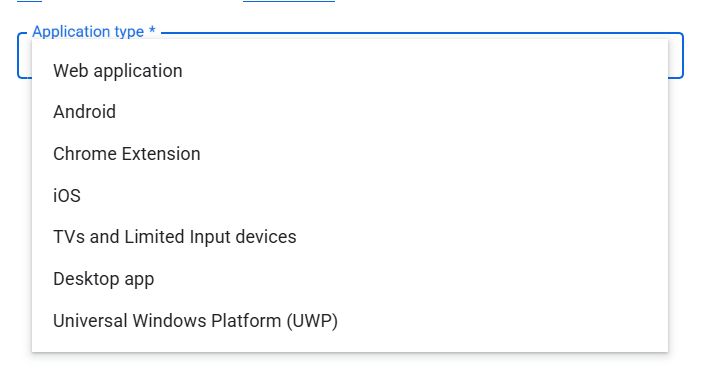
- Create an OAuth client for "Desktop app" in Google Cloud Console
- Download the JSON file
- Configure it with this command:
gog auth credentials ~/Downloads/client_secret_xxxx.jsonNext Problem: Access Blocked Error
After configuring OAuth, running gog auth login again shows a different error:
Access blocked: gog-cli-auth has not completed the Google verification process
This app is currently in testing mode and can only be accessed by testers approved by the developer.
Solution 2: Add Test Users
You need to add your email address as a test user in Google Cloud Console.
Steps
- Go to Google Cloud Console
- Navigate to APIs & Services → OAuth consent screen
- Confirm the app is in Testing mode
- Scroll down to the Test users section
- Click Add users
- Enter your email address
- Click Save
- Wait a few minutes, then retry gog auth login
Now you should be able to log in successfully!
Summary
gogcli authentication requires a 2-step setup:
- Configure OAuth credentials (JSON file)
- Add test users (Google Cloud Console)
For personal use, keeping the app in "Testing" mode and adding your email as a test user is the simplest approach.
