I recently bought a MiniFire portable monitor, and right out of the box I ran into a frustrating issue:
the brightness couldn’t be changed at all.
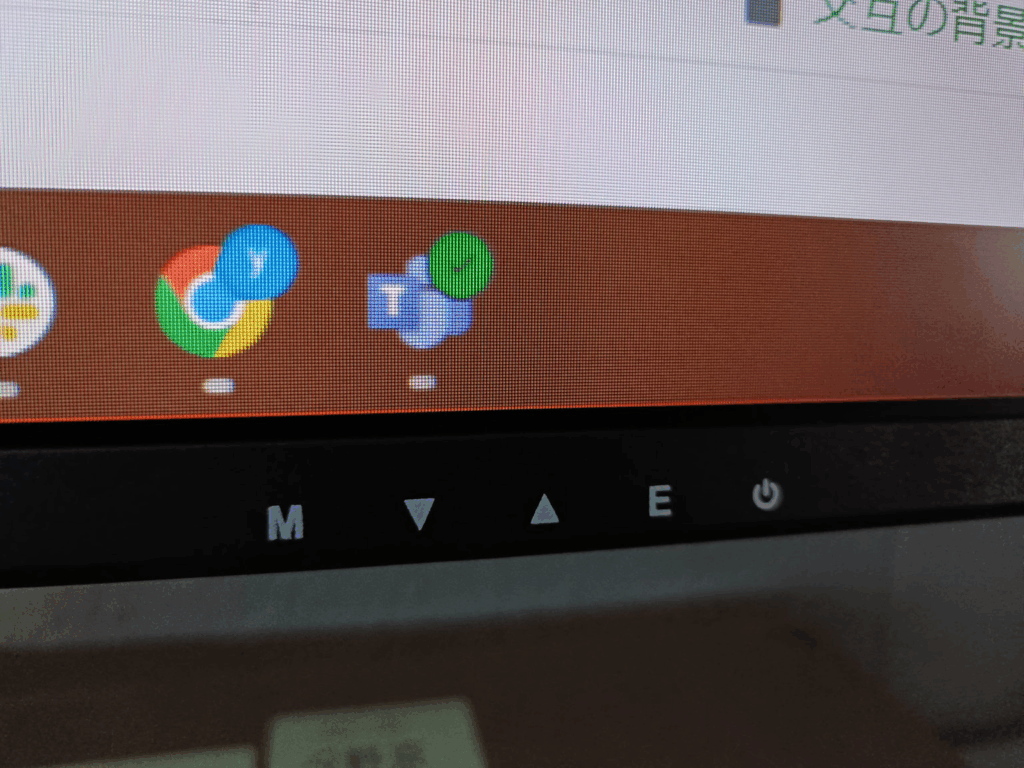
Even when I opened the menu, the brightness slider was completely locked.
As a result, the screen stayed overly bright, and after a while, my eyes were really starting to hurt.
After some digging around in the settings, I finally found the solution — and it’s extremely simple.
💡 The Fix: Change the “Image Mode” First
On MiniFire monitors, the brightness cannot be adjusted unless the Image Mode (sometimes labeled “Picture Mode”) is set to something that allows manual control.
✔ What I did
- Opened the on-screen menu
- Navigated to Image Mode / Picture Mode
- Switched it from the default preset to another mode (e.g., Standard, User, etc.)
After switching the mode, brightness adjustment instantly became available.
Once unlocked, I could lower the brightness enough that the screen stopped hurting my eyes.
If your MiniFire monitor is “too bright and unchangeable” — check this setting
It seems many portable monitors lock brightness depending on the selected preset.
MiniFire is no exception.
So if:
- brightness won’t move
- the slider is greyed out
- the screen is eye-burningly bright
👉 Change the Image Mode first.
You’ll likely see the brightness option unlock immediately.
