This is a practical install and troubleshooting guide for Clawdbot 2026.1.23-1 on Windows 11 + WSL2, covering the complete flow to Discord integration and how to fix the errors I actually encountered.
Conclusion: Enable Message Content Intent, follow the correct OAuth2 flow for the invite URL, and run WSL enablement commands in an elevated PowerShell.
This article outlines the installation process first, followed by specific fixes for 4014/1008 errors and WSL permission issues.
1. Prerequisites
Ensure you have the following ready:
- A Discord application created in the Developer Portal
- A Bot added to the application with its token generated
- Clawdbot installed locally
2. Discord Basic Settings (Crucial)
This is where people get stuck most often. Pay special attention to how you generate the invite URL.
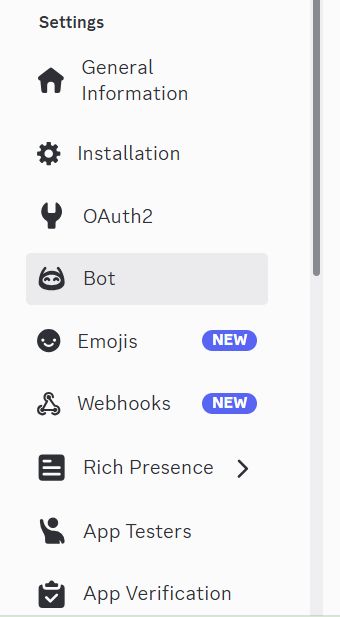
2-1. Open the Bot Page
Select Bot from the left menu in the Developer Portal.
2-2. Enable Privileged Gateway Intents
Turn ON Message Content Intent and save. If this is OFF, you will hit a 4014 error and the bot won't start.
2-3. Create Invite URL with OAuth2 URL Generator (Attention)
It is common to look for permission settings in the left "Bot" tab, but the correct way is to use the OAuth2 menu.
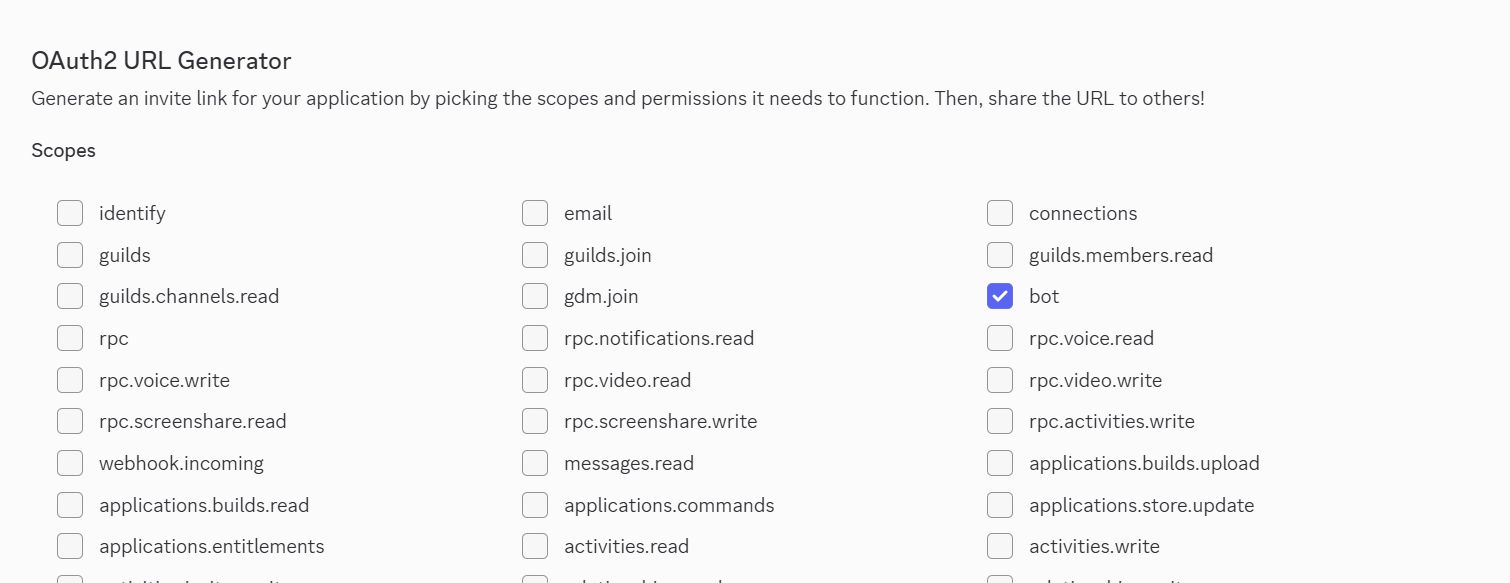
- Click OAuth2 in the left menu and select URL Generator from the submenu.
- Check bot in the Scopes section (The permissions section below won't appear unless this is checked).
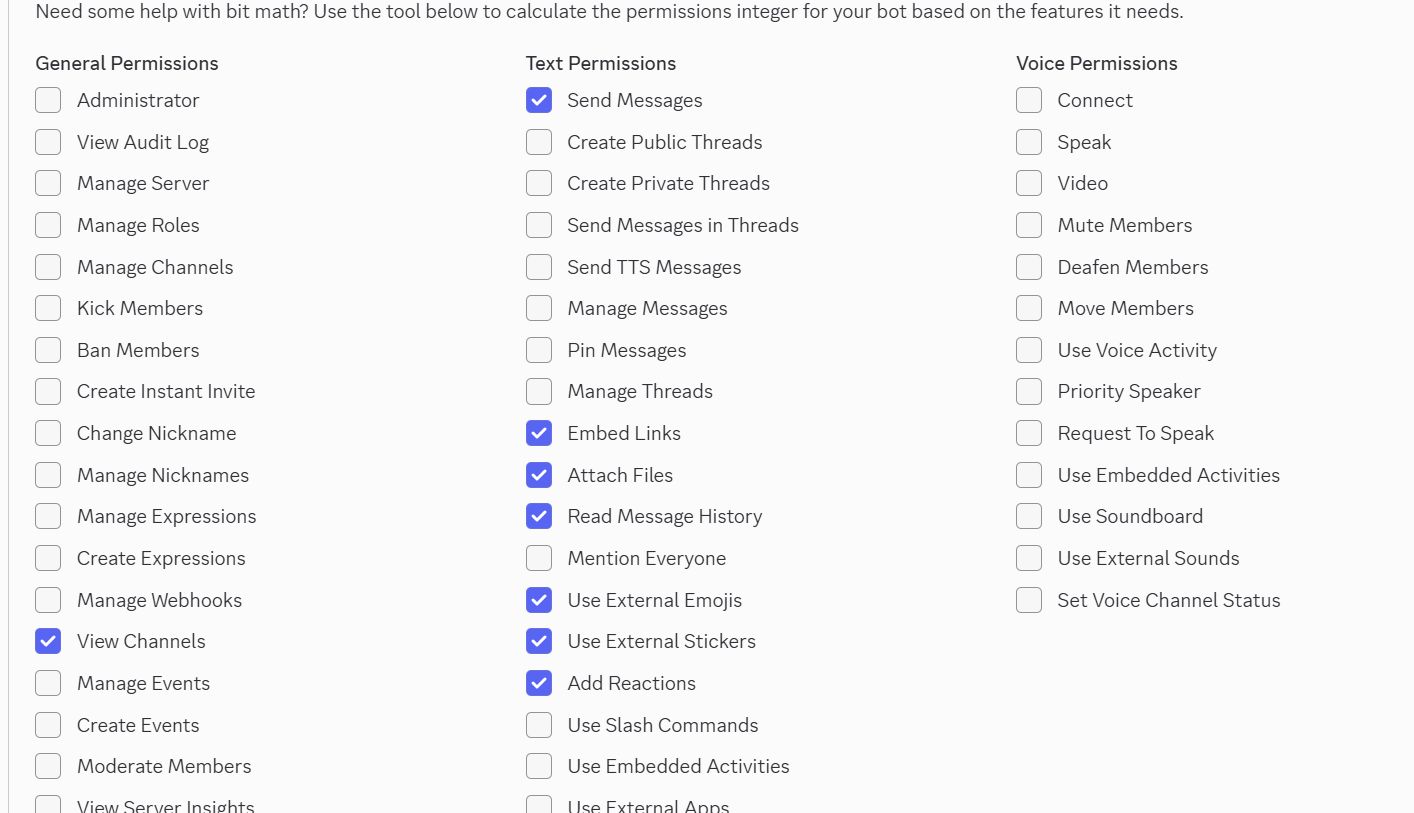
- Once you select BOT, a Bot Permissions section will appear below. Select the necessary permissions here (e.g., Administrator, Send Messages).
- Copy the generated URL at the bottom and open it in a browser to invite the Bot to your server.
Failure Story: I assumed I could do everything within the "Bot" tab on the left. This resulted in an invite URL with no permissions attached, and the Bot didn't respond to anything. The flow "OAuth2" → "URL Generator" → "Scopes: bot" → "Select Permissions" is mandatory.
3. Verify Clawdbot Startup
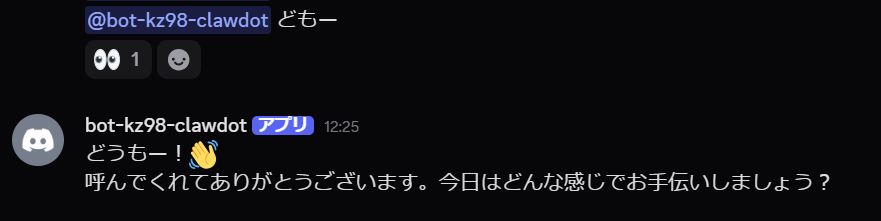
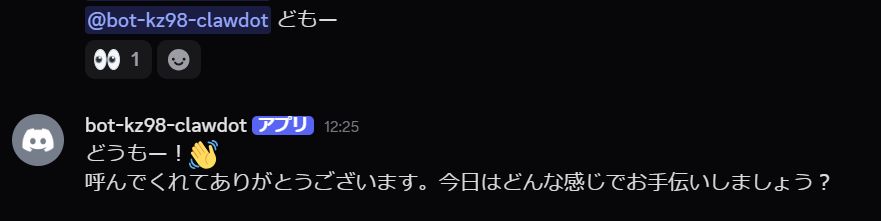
Run clawdbot channels status –probe to check the Gateway status. If normal, the Gateway will start, and the Bot will respond.
4. Common Errors and Fixes
4-1. Fatal Gateway error: 4014
Symptom: intents:content=disabled appears, and the Gateway stops.
Fix: Go to Discord Dev Portal → Bot → Privileged Gateway Intents → Turn ON Message Content Intent.
4-2. disconnected (1008): unauthorized: gateway token missing
Symptom: Gateway Dashboard shows 1008 unauthorized.
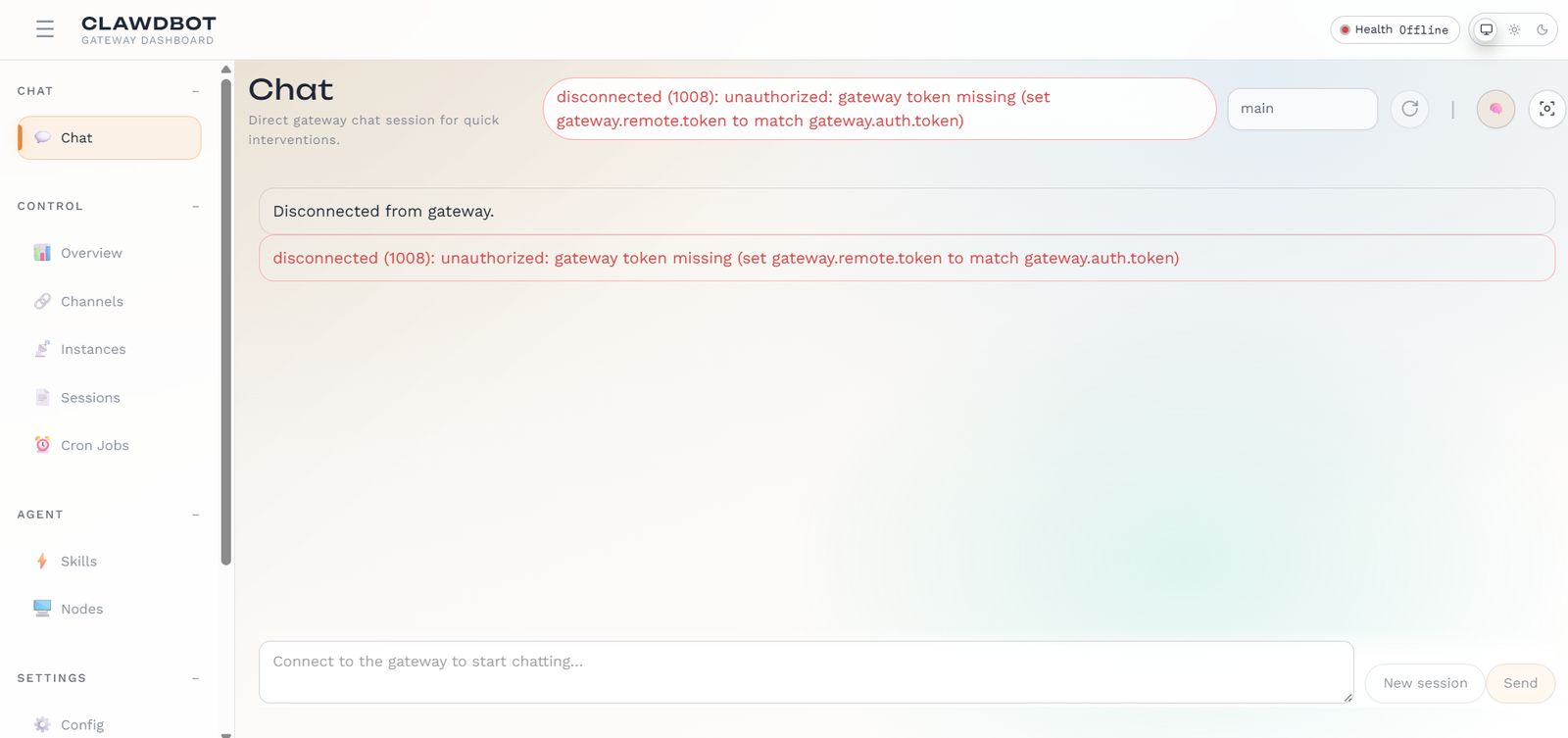
Fix: Ensure gateway.remote.token and gateway.auth.token match, then reconnect.
4-3. WSL Enablement Requires Admin Privileges
Symptom: DISM stops stating "Admin privileges required".
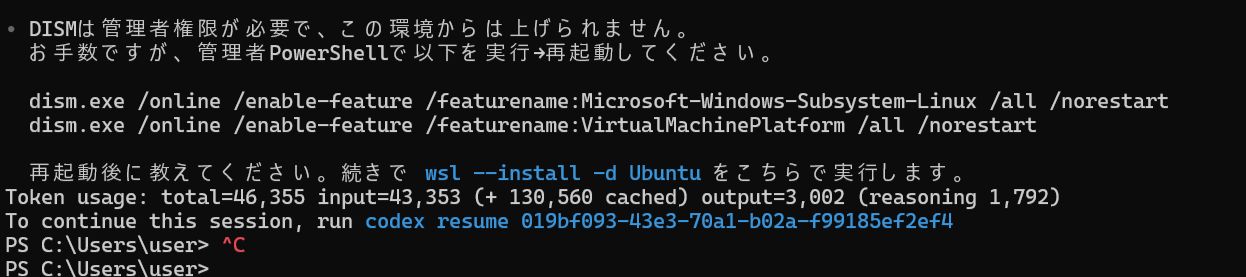
Fix: Run the following in an Administrator PowerShell and reboot.
dism.exe /online /enable-feature /featurename:Microsoft-Windows-Subsystem-Linux /all /norestart
dism.exe /online /enable-feature /featurename:VirtualMachinePlatform /all /norestart
5. Installation Note
If you are asked to install skill dependencies during installation, simply select the recommended Node package manager (e.g., npm).

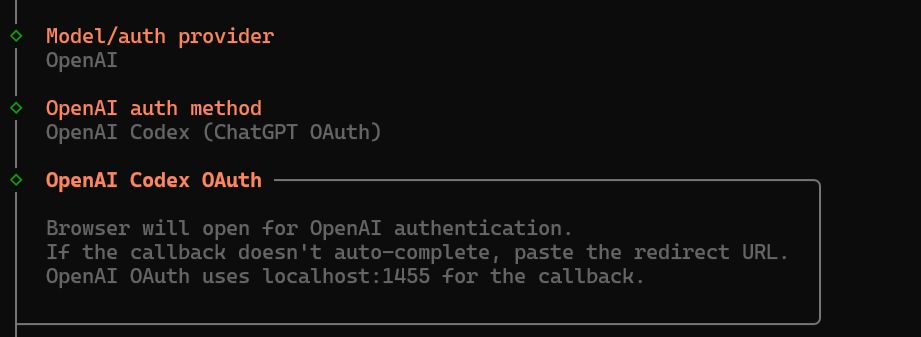
If browser authentication is required during the auth flow, follow the on-screen instructions.