If you frequently use CLI tools like codex, npm, or custom scripts, opening a terminal and typing the command every time can become tedious.
This guide introduces a robust way to create a desktop shortcut that launches your favorite CLI tool in a focused environment. We will cover a modern PowerShell method (recommended) and a classic CMD method.
Method 1: The PowerShell Way (Automated)
This method is cleaner because it keeps the actual script hidden in your Documents folder, leaving only a neat shortcut on your desktop. It also handles execution policies and working directories gracefully.
Quick Setup
You can set this up instantly by running the following commands in PowerShell. This script does three things:
- Creates a hidden directory for the script (Documents\_tools\codex).
- Generates a .ps1 launcher script.
- Creates a shortcut on your Desktop (Codex.lnk).
Copy and paste the following into your PowerShell terminal:
# Destination (Kept out of sight)
$baseDir = Join-Path $HOME "Documents\_tools\codex"
$scriptPath = Join-Path $baseDir "run-codex.ps1"

# Create Directory
New-Item -ItemType Directory -Force -Path $baseDir | Out-Null

# Create the launcher ps1
@'
# Set your preferred working directory here
Set-Location "$HOME"
# Run your CLI tool
codex
'@ | Set-Content -Encoding UTF8 $scriptPath

# Create the Desktop Shortcut
$desktop = [Environment]::GetFolderPath("Desktop")
$shortcutPath = Join-Path $desktop "Codex.lnk"

$wsh = New-Object -ComObject WScript.Shell
$shortcut = $wsh.CreateShortcut($shortcutPath)
$shortcut.TargetPath = "powershell.exe"
# -NoExit keeps the window open after the command finishes
$shortcut.Arguments = "-NoExit -ExecutionPolicy Bypass -File `"$scriptPath`""
$shortcut.WorkingDirectory = $HOME
$shortcut.IconLocation = "$env:SystemRoot\System32\WindowsPowerShell\v1.0\powershell.exe"
$shortcut.Save()

Write-Host "Done: Codex shortcut created on Desktop."
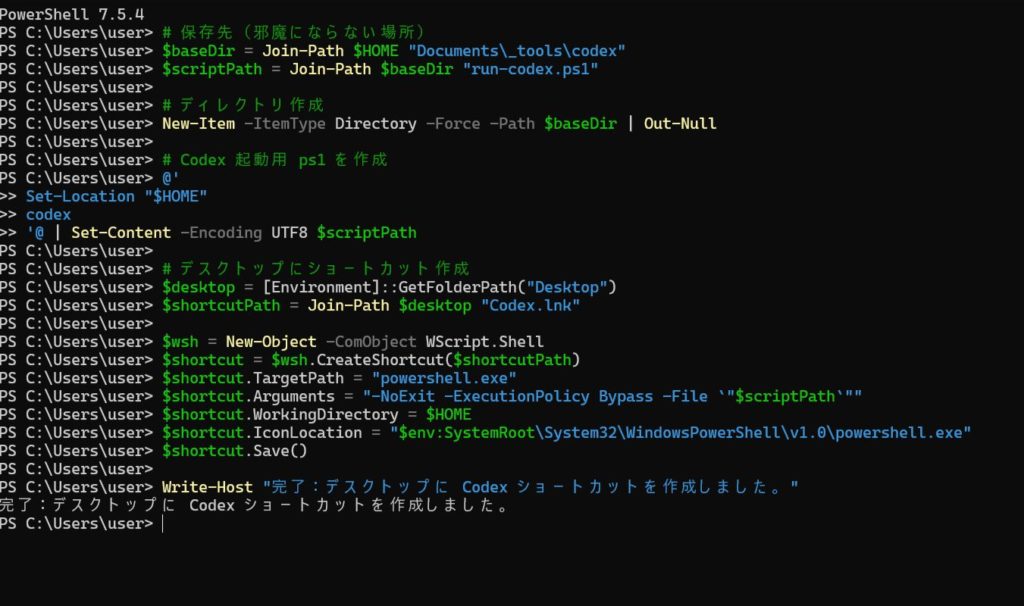
Execution Preview
When you paste the code, it will look like this:

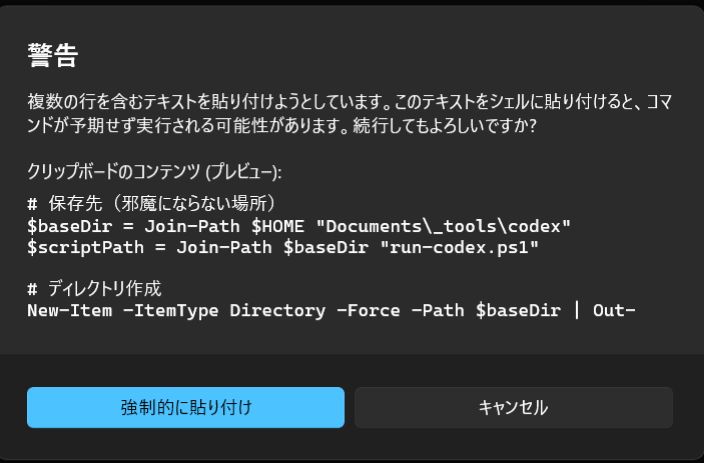
Note: If you paste multiple lines into PowerShell, you might see a warning dialog asking if you want to execute them. This is a standard safety feature.
The Result
You will see a new shortcut on your desktop.
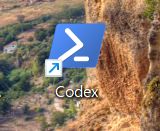
Double-clicking this icon will open a PowerShell window, automatically set the directory, and run your command. The window will stay open (due to -NoExit), allowing you to see the output or continue working.
Method 2: The CMD (Batch) Way
If you prefer the "old school" method or want a simple portable file, you can create a .bat file directly on your desktop.
- Create a new text file on your desktop and name it RunCodex.bat.
- Edit it with Notepad and paste the following:
@echo off
:: Set working directory
cd /d "%USERPROFILE%"

:: Run your command
call codex

:: Keep window open
cmd /k- Save the file.
Double-clicking this file will launch command prompt and run the tool. While simpler, the PowerShell method is generally preferred for modern workflows as it allows for more complex setup (like environment variables) if needed later.
