
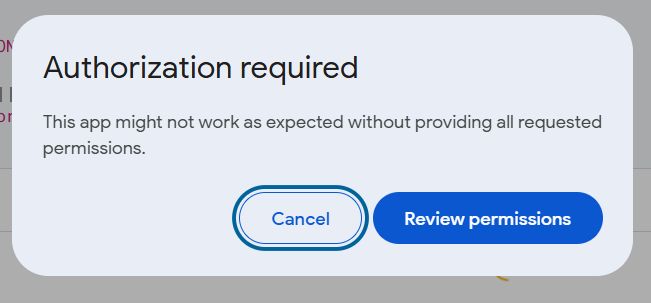
When you run a Google Apps Script (GAS) for the first time, or when you add new permissions (such as access to Gmail or Sheets), you will see an “Authorization required” popup.
As you proceed, you will encounter a scary warning screen saying “Google hasn’t verified this app”, often labeling it as “unsafe”. Many users stop here, fearing they’ve done something wrong.
This simply means “Google hasn’t reviewed your script as an official app”. If it’s a script you wrote yourself, it is safe to proceed.
This article covers the older UI where you still see Advanced and then Go to {app} (unsafe). If you are seeing the newer Continue / Back to safety tester warning, that is a different flow.
This article explains the steps to bypass this warning screen and execute your script, with screenshots.
Recently, some users see a newer tester warning with Continue and Back to safety instead of the old Advanced flow. If that is what you are seeing, read this updated explanation.
Step 1: Review Permissions
When you run the script, you will first see this dialog. Click “Review permissions”.
Step 2: Choose an Account
Select the Google account you want to use to run the script.

Step 3: Bypass the Warning Screen (Important)
Here, you will see a screen with a red alert icon saying “Google hasn’t verified this app”. You might be tempted to click the blue “Back to safety” button, but do not click it (it will cancel the execution).
Instead, click the “Advanced” link in the bottom left corner.

Step 4: Go to the “Unsafe” Page
Once the advanced details open, a link will appear at the bottom. Click “Go to [Project Name] (unsafe)”.
Note: It says “unsafe”, but this just means it hasn’t been verified by Google. If it’s your own script, it is safe to proceed.

Step 5: Allow Access
Finally, you will see what the script is requesting access to (e.g., Edit access to Spreadsheets). Review the permissions and click “Allow” at the bottom.

Done
Your script will now execute. You only need to do this authorization process once (unless you add new permissions to the script later).
Don’t be afraid of the warning—just follow the path: Advanced -> Go to (unsafe) -> Allow.
